> This is part 1 of 3 of the full documentation (pages 1–100 of 208).
> The content is paginated: fetch every part to see all of it.
> Next part: https://docs.movel.ai/new-collection/llms-full.txt/1
> Page index: https://docs.movel.ai/new-collection/llms.txt

# Main

Welcome to Movel AI's resource page. Here, you will find product features, installation guides and more.

**Seirios** is our portfolio of flagship products aimed at making robots smarter and more agile. Under Seirios, there are two main products;

<figure><img src="https://3011557067-files.gitbook.io/~/files/v0/b/gitbook-x-prod.appspot.com/o/spaces%2F-MkBtlBrwlCbBifOLd-h-887967055%2Fuploads%2FOHcOpKMh9m4VAyEdx9l0%2FScreenshot%202024-02-21%20095510.png?alt=media&amp;token=dff2c650-0702-4271-95d9-44b1ecccb689" alt="Products: Seirios RNS and Seirios FMS"><figcaption><p>See more at <a href="https://movel.ai/products">movel.ai/products</a></p></figcaption></figure>

> [*Keen to know more? Share your contact details here and we'll reach out to you immediately!*](https://movelaidemo.getresponsepages.com/)

{% hint style="info" %}
If you have questions, please feel free to ask by reaching us at <sales@movel.ai>
{% endhint %}

## **Quicklinks**

[*↗️ Trial Installation Files*](/new-collection/seirios-rns/documentation/installation-and-integration-1/easy-deploy-for-seirios)\
[*↗️ Seirios RNS REST APIs* ](/new-collection/seirios-rns/documentation/rest-apis)\
[*↗️ External Process Handler (Custom Feature Code Integration)*](/new-collection/seirios-rns/documentation/ext-process-handler) *- docking/charging/others*


# RNS Features

Seirios RNS is a visually rich product that combines modern web and robotic technologies. The following highlight features for your various use and applications

![Seirios RNS accessed on a tablet's browser](https://3011557067-files.gitbook.io/~/files/v0/b/gitbook-x-prod.appspot.com/o/spaces%2F-MkBtlBrwlCbBifOLd-h-887967055%2Fuploads%2FieJho0E9Ffm6illyp7r6%2FMockup%20tablet%20-%20Homepage%20\(black\)%20\(1\).png?alt=media\&token=8624f222-5da9-4034-a343-f74f368a29dd)

Seirios RNS' features can be divided into three categories:

* [**Core Features**](/new-collection/seirios-rns/product-features/core) : features that enable the robot to move manually and/or autonomously
* [**Supplementary Features**](broken://pages/z15v5I72rW7kSjkAHtgk) : features that supplement and improve the core features
* [**Robotic Features**](/new-collection/seirios-rns/product-features/robotics) : features that non visual and only configurable from the robotic backend


# Core

Seirios RNS' core features

The following features are bundled with the following features.&#x20;

Please refer to the respective features' page for additional details, images and information by referring to the menu on the left or by clicking the hyperlinks below.

* [Dashboard](/new-collection/seirios-rns/product-features/core/dashboard)
* [Teleoperation](/new-collection/seirios-rns/product-features/core/teleoperation)
* [Single Event Tasks](/new-collection/seirios-rns/product-features/core/run-once-tasks)
* [Stations](/new-collection/seirios-rns/product-features/core/stations)
* [Localiser](/new-collection/seirios-rns/product-features/core/localiser)
* [Mapping](/new-collection/seirios-rns/product-features/core/mapping)
* ~~Multi-floor Navigation (MFN)~~ `(coming soon)`
* ~~Multi-storey Navigation (MSN)~~`(coming soon)`
* [Task Manager](/new-collection/seirios-rns/product-features/core/task-manager) (Tasklist and Scheduler)


# Dashboard

After logging into Seirios RNS, you will see the Dashboard first

The dashboard is the first page that you see after logging in. After mapping, saving and loading a map, it will be visualised here;

![](https://3011557067-files.gitbook.io/~/files/v0/b/gitbook-x-prod.appspot.com/o/spaces%2F-MkBtlBrwlCbBifOLd-h-887967055%2Fuploads%2Fk3uJ4BdlJgxgNVgqF2Vp%2FTop%20bar%20V.3%20-%206.png?alt=media\&token=5049495a-41cc-439b-84d3-e673af286115)

***Speed controls, analog/keyboard control and toggle,*** and ***mode-dependent buttons*** will be displayed in this panel. This panel can be toggled to be hidden or shown too.

![Depending on the mode selected, action buttons will change](https://3011557067-files.gitbook.io/~/files/v0/b/gitbook-x-prod.appspot.com/o/spaces%2F-MkBtlBrwlCbBifOLd-h-887967055%2Fuploads%2FrDOsAHRf4TCw1Vbm0lq7%2Fimage.png?alt=media\&token=057d5e2d-ffed-4b27-8066-6aa3ff641153)

{% hint style="warning" %}
Note that **`E-stop`** will disconnect power to the motors and will render the robot immovable. To abort/clear tasks in the queue, choose **`Clear tasks`** instead
{% endhint %}


# Teleoperation

Under this category, users can manually drive their robots

1. **Drive** - to manually drive the robot with the onboard controls (keyboard or analog)

![](https://3011557067-files.gitbook.io/~/files/v0/b/gitbook-x-prod.appspot.com/o/spaces%2F-MkBtlBrwlCbBifOLd-h-887967055%2Fuploads%2FFD109rzn11XktIgHXDPc%2Fimage.png?alt=media\&token=d3d85620-1fac-48df-81a4-e2753c20baf2)

Granular controls are automatically applied; similar to a car's gas pedal/accelerator, users can granularly control the speed based on the set (0.1 - 0.9 m/s) limit with the joystick.

{% hint style="info" %}
Higher speeds beyond 0.9m/s are possible however are not enabled by default - only upon request.
{% endhint %}

![Granular speed controls](https://3011557067-files.gitbook.io/~/files/v0/b/gitbook-x-prod.appspot.com/o/spaces%2F-MkBtlBrwlCbBifOLd-h-887967055%2Fuploads%2FFhlc4oStJTXkuWfXXih0%2FScreenshot%202022-04-13%20at%2012.32.08%20PM.png?alt=media\&token=469457c1-2bf1-4bf9-8d68-9a4536a0268f)

For omnidirectional robots, steering can be controlled with `Shift` keys as shown below. The keys will move the robot on the X axis/plane (sideways)

![](https://3011557067-files.gitbook.io/~/files/v0/b/gitbook-x-prod.appspot.com/o/spaces%2F-MkBtlBrwlCbBifOLd-h-887967055%2Fuploads%2Fz6IHxVLUKqtJYTaG3Kuy%2Fimage.png?alt=media\&token=ca107fa9-61af-4394-a220-89892e5879c3)


# Mapping

Seirios RNS supports multiple mapping algorithms. Jump to the algorithm of interest here on the right panel (desktop view only) ➡️

{% hint style="danger" %}
Please be informed that all mapping modes (except 2D mapping) are disabled by default as they require special hardware configurations. These include **`Automatic mapping`**, **`3D mapping`**, **`RTAB mapping`** and **`ORB-SLAM mapping`** and are indicated with flags 🚩 below
{% endhint %}

## 2D Mapping

The most commonly used mapping algorithm, the cameras mounted on robots populate and generate a map of its surroundings

![](https://3011557067-files.gitbook.io/~/files/v0/b/gitbook-x-prod.appspot.com/o/spaces%2F-MkBtlBrwlCbBifOLd-h-887967055%2Fuploads%2Fw7FeZxEdx4ZpKEbYQRc0%2FApr-13-2022%2012-43-56.gif?alt=media\&token=179875ba-21be-4ff6-87fa-3909ac6bc1ce)

Users can manually teleoperate the robot, to 'reveal' the map represented by white areas in the map

## Auto Mapping 🚩

Incorporating this feature into Seirios allows users to automatically map large areas without manually driving with virtual controls. The auto-mapping feature was originally developed for a wall-scanning construction project

Automatic mapping without manual controls from users

![](https://3011557067-files.gitbook.io/~/files/v0/b/gitbook-x-prod.appspot.com/o/spaces%2F-MkBtlBrwlCbBifOLd-h-887967055%2Fuploads%2F69rq3n8xycTpPnDKTmyf%2Fimage.png?alt=media\&token=5714984b-7d80-4062-9014-6a032ebe062c)

{% hint style="danger" %}
Map does not save automatically once mapping is done. Click 'Stop' to prompt the 'save map' model
{% endhint %}

## 3D Mapping 🚩

{% hint style="danger" %}
3D mapping requires a 3D LiDAR and a capable CPU (Intel/AMD x86 recommended)
{% endhint %}

![Seirios RNS mapping the environment in 3D](https://3011557067-files.gitbook.io/~/files/v0/b/gitbook-x-prod.appspot.com/o/spaces%2F-MkBtlBrwlCbBifOLd-h-887967055%2Fuploads%2FDf9BWuCTMNavATHSwCCl%2FJan-13-2022%2011-59-32.gif?alt=media\&token=2a6d565c-de9e-4d68-8aaa-6223f7b0a56e)

For higher accuracy, range and better visual representation of environmental features, users can opt to map in 3D. A 2D map will be generated from a 3D map too

## RTAB-MAP 🚩

RTAB-Map (Real-Time Appearance-Based Mapping) is a RGB-D, Stereo and Lidar Graph-Based SLAM approach based on an incremental appearance-based loop closure detector.

![RTABMAP is a mapping algorithm which produces the same 2D map with scan](https://3011557067-files.gitbook.io/~/files/v0/b/gitbook-legacy-files/o/assets%2F-MkBtlBrwlCbBifOLd-h%2F-Mk_ttpTrn5EXCE4CXhS%2F-MkaABKAwPu5vMFEHPbk%2FUntitled.png?alt=media\&token=e50e17a7-1f42-4edc-93b5-50fe7dc5569c)

As its namesake, it uses real time images to map the environment

## ORB-SLAM Camera Based Mapping 🚩

ORB-SLAM is a keyframe and feature-based Monocular SLAM. It operates in real-time in large environments, being able to close loops and perform camera relocalisation from very different viewpoints.

<div align="center"><img src="https://3011557067-files.gitbook.io/~/files/v0/b/gitbook-legacy-files/o/assets%2F-MkBtlBrwlCbBifOLd-h%2F-Mk_ttpTrn5EXCE4CXhS%2F-MkaAtaIQJtMC3kBjmvB%2Fezgif-1-38642ec51c2c-2.gif?alt=media&amp;token=ad6b6a2e-8743-41a5-871b-783d764eecc1" alt=""></div>

![](https://3011557067-files.gitbook.io/~/files/v0/b/gitbook-legacy-files/o/assets%2F-MkBtlBrwlCbBifOLd-h%2F-Mk_ttpTrn5EXCE4CXhS%2F-MkaB-0yJBDdsxs3m-63%2Fezgif-1-083ccc0a42d5.gif?alt=media\&token=7fb411d0-35b9-488f-bea9-4fdd001dbcfd)

Seirios is able to support mapping with the use of monocular, stereo, and RGB-D cameras. Green 'dots' are features recognised and stored in the map data, generating a 2D map

![Intel RealSense D435 - a depth camera that can be used for ORBSLAM camera based mapping](https://3011557067-files.gitbook.io/~/files/v0/b/gitbook-legacy-files/o/assets%2F-MkBtlBrwlCbBifOLd-h%2F-Mk_ttpTrn5EXCE4CXhS%2F-MkaBAbE4OA5mi11yfjk%2FUntitled-2.png?alt=media\&token=5d62daa2-de46-4c07-a676-6355b93de762)

{% hint style="warning" %}
Substitutable with similar cameras with depth sensing capabilities
{% endhint %}


# Tasks

Single event tasks are tasks that can be executed with one click

![Trails and Waypoints are Single event tasks](https://3011557067-files.gitbook.io/~/files/v0/b/gitbook-x-prod.appspot.com/o/spaces%2F-MkBtlBrwlCbBifOLd-h-887967055%2Fuploads%2FZPAg90gnf5dAQooXAMMQ%2Fimage.png?alt=media\&token=1162bfe2-322c-45e8-a917-645b92f8dc17)

There are only two types of tasks in Seirios RNS;

* **Trail :** where robot will follow the generated lines closely (will not deviate outside). When faced with obstacles, robot will stop until obstacles are removed.
* **Waypoints:** where robot will not follow the lines and obstacles will be dynamically avoided (unless setting is toggled to stop-at-obstacle)

## Trails

### Teleop Trail

In this mode, users are required to Mark each point and a **line will be generated between points.**&#x20;

![Lines will be generated between marked points](https://3011557067-files.gitbook.io/~/files/v0/b/gitbook-x-prod.appspot.com/o/spaces%2F-MkBtlBrwlCbBifOLd-h-887967055%2Fuploads%2FjuQ5fTBpm61uka5zKCa0%2Fimage.png?alt=media\&token=065d1f30-ed6d-4015-b42b-d77daeb1a8ee)

### Mark Trail

Similar to `Teleop Trail`, instead of moving the robot to mark, use the on-screen marker to drop points. Lines will be generated automatically.

![](https://3011557067-files.gitbook.io/~/files/v0/b/gitbook-x-prod.appspot.com/o/spaces%2F-MkBtlBrwlCbBifOLd-h-887967055%2Fuploads%2F3yQ69699HJ4mHUPr141h%2FApr-13-2022%2014-03-47.gif?alt=media\&token=6ab1f6b3-acf5-46ed-8b5f-6f01e3fe10ca)

{% hint style="danger" %}
The **orientation** is automatically defined after your next point is marked. Otherwise, use the WASD or analog controls to change the orientation
{% endhint %}

### Zone

The Zone feature can automatically generate points (trail style) in a specified area.

![](https://3011557067-files.gitbook.io/~/files/v0/b/gitbook-x-prod.appspot.com/o/spaces%2F-MkBtlBrwlCbBifOLd-h-887967055%2Fuploads%2FgdLdkfXGpE7NuN8ed6Rh%2FApr-13-2022%2016-00-26.gif?alt=media\&token=d70f09ad-8261-42af-88f6-ba28a490c559)

{% hint style="info" %}
Robot will execute generated points in trail style - obstacles will not be avoided and will follow exactly the line that is generated
{% endhint %}

{% hint style="info" %}
You will require a minimum of 3 points to save a zone
{% endhint %}

The generated zone will look like this, where points will be generated close to each other;

![](https://3011557067-files.gitbook.io/~/files/v0/b/gitbook-x-prod.appspot.com/o/spaces%2F-MkBtlBrwlCbBifOLd-h-887967055%2Fuploads%2FUmrvyxalvW7Nm8ir38uS%2Funnamed.png?alt=media\&token=bd63fbd6-3cf3-43bb-81f4-6fd0a8df9c67)

## Waypoints

Waypoints are similar to `Mark Trail` where the only difference is that the robot **does not** follow the generated line closely. Obstacles will be avoided as the robot navigates in its environment.

![](https://3011557067-files.gitbook.io/~/files/v0/b/gitbook-x-prod.appspot.com/o/spaces%2F-MkBtlBrwlCbBifOLd-h-887967055%2Fuploads%2FVQtoJAw27rJMP4twnOwq%2Fimage.png?alt=media\&token=7acf9efe-1091-4901-a565-e890219607c9)

{% hint style="info" %}
If you are only marking one point, change the orientation of the pose with either your keyboard or the analog controls
{% endhint %}


# Stations

Create multiple stations for either to dock for charging, or for other purposes

![](https://3011557067-files.gitbook.io/~/files/v0/b/gitbook-x-prod.appspot.com/o/spaces%2F-MkBtlBrwlCbBifOLd-h-887967055%2Fuploads%2FkwIUu8Zc6WfQDnOhgjyZ%2Fimage.png?alt=media\&token=6c5cc652-21ac-4cc3-ab32-f38a644c53f0)

Users can create one or more (no limit) stations for a specific map to dock to - for **charging** or for **other tasks** (such as picking of objects with a robotic arm payload)

## Creating stations

Users are required to **drive** the robot manually in the map (in the interest of accuracy and precision) and upon reaching the point of interest, capture the pose and store it as a station

![Creating, saving and renaming a station](https://3011557067-files.gitbook.io/~/files/v0/b/gitbook-x-prod.appspot.com/o/spaces%2F-MkBtlBrwlCbBifOLd-h-887967055%2Fuploads%2FFhjBpNkKaPDaf7QBf9Mx%2FJan-17-2022%2015-23-09.gif?alt=media\&token=896f20ed-003d-4c3d-b383-d7e0be626802)

{% hint style="warning" %}
For docking, ensure that the QR code is visible to the robot before saving it as a station
{% endhint %}

## Queueing saved stations

After station(s) are created, queue them together with other tasks to build an autonomous robotic process in your environment.

![](https://3011557067-files.gitbook.io/~/files/v0/b/gitbook-x-prod.appspot.com/o/spaces%2F-MkBtlBrwlCbBifOLd-h-887967055%2Fuploads%2Fs9mZQ11JgvGlY4D612qT%2Fimage.png?alt=media\&token=34cbc2a7-eff7-412b-bcdf-99ecf9eaa896)

Besides charging, stations can be used to mark points of interest so robot(s) can dock to, with precision

{% hint style="warning" %}
Please refer to the [external process handler page](/new-collection/seirios-rns/documentation/ext-process-handler) on how to integrate your own docking code
{% endhint %}


# Localiser

Due to various factors, like localisation drifts, it's important to adjust the localisation manually with the localiser

![](https://3011557067-files.gitbook.io/~/files/v0/b/gitbook-x-prod.appspot.com/o/spaces%2F-MkBtlBrwlCbBifOLd-h-887967055%2Fuploads%2FGpYzSiM0e837pRKNMOhF%2Fimage.png?alt=media\&token=526c6366-f835-43fb-997e-aeb3186c8dba)

From the mode switcher, select the `Localise` button and click Start

![Use either the analog controller or WASD keys to align the green laser scan to the map's walls and environment](https://3011557067-files.gitbook.io/~/files/v0/b/gitbook-x-prod.appspot.com/o/spaces%2F-MkBtlBrwlCbBifOLd-h-887967055%2Fuploads%2Fjm6rIZmYpUVxRxxJcRvG%2FJan-17-2022%2015-35-38.gif?alt=media\&token=da5da0e9-cbcd-4e8a-8100-b244406ace1f)

Once the laser scan is aligned properly, click save to localise


# Task Manager

For autonomous operations, use the Task Manager to queue different tasks together and introduce different elements such as Delays and Stations

From the top left corner, click the hamburger menu button to expand the options and click on **Task Manager**. You will be presented with two options, **Tasklist** and **Scheduler**.

![](https://3011557067-files.gitbook.io/~/files/v0/b/gitbook-x-prod.appspot.com/o/spaces%2F-MkBtlBrwlCbBifOLd-h-887967055%2Fuploads%2FygcRpQf5j7XuKNgiyAqM%2Fimage.png?alt=media\&token=05b04c1f-5116-447a-a170-35d3b5de018b)

These two options share many similarities but **Scheduler** introduces the element of time on top of queued tasks.

## Queueing Tasks

From here, select Tasks (`Path, Goal, Zone, Station, Custom` or `Delay`) to create a list of tasks that can be run with a single click.&#x20;

After saving the list, your tasks can be previewed as shown below

![](https://3011557067-files.gitbook.io/~/files/v0/b/gitbook-x-prod.appspot.com/o/spaces%2F-MkBtlBrwlCbBifOLd-h-887967055%2Fuploads%2Fn33BhjQjFXTACGaJ2ZT5%2Fimage.png?alt=media\&token=1044a17d-b48e-4cec-b919-fad8f707eca9)

From here, run your Tasks now by clicking 'Run Now' or put this Tasklist into the queue with 'Add to Queue' at the bottom of the screen

![Add to Queue or Run Now](https://3011557067-files.gitbook.io/~/files/v0/b/gitbook-x-prod.appspot.com/o/spaces%2F-MkBtlBrwlCbBifOLd-h-887967055%2Fuploads%2F9W9rEZiMMOmzwPBTdNez%2Fimage.png?alt=media\&token=5fba42a6-822b-4386-ae2b-0ca33466c1e0)

## Scheduling Tasks

To schedule these tasks to run at a later date/time, edit the task (by clicking the pencil icon) and input the date and time details

![](https://3011557067-files.gitbook.io/~/files/v0/b/gitbook-x-prod.appspot.com/o/spaces%2F-MkBtlBrwlCbBifOLd-h-887967055%2Fuploads%2FWrrrwJdcPSnxyuhtYY64%2Fimage.png?alt=media\&token=883591a4-c833-43dc-9e7a-7feea40c6a33)

You can also save these scheduled tasklists as Active or Inactive

## State Machines

Seirios supports integration with state machines. [**Flexbe**](http://wiki.ros.org/flexbe/Tutorials/Using%20the%20Statemachine%20Editor) is tried and tested to be compatible with Seirios and it includes an editor with which you can create your own conditions;

![](https://3011557067-files.gitbook.io/~/files/v0/b/gitbook-x-prod.appspot.com/o/spaces%2F-MkBtlBrwlCbBifOLd-h-887967055%2Fuploads%2FtwzxXCNwIFGvye5A2p1r%2Fimage.png?alt=media\&token=0cec99d2-f901-4b97-96ea-84b8b0410f18)


# Supplementary

On top of the core features, Seirios RNS are bundled with supplementary features too;

* [Behavioral & Interface](/new-collection/seirios-rns/product-features/supplementary-features/behavioral-and-interface)
* [Map Editor](/new-collection/seirios-rns/product-features/supplementary-features/map-editor)
* [Queue Manager](/new-collection/seirios-rns/product-features/supplementary-features/queue-manager)
* [Non-full Qualified Tasks](/new-collection/seirios-rns/product-features/supplementary-features/auxiliary-tasks)
  * [Custom](/new-collection/seirios-rns/product-features/supplementary-features/auxiliary-tasks#custom-tasks)
  * [Auxiliary Tasks](/new-collection/seirios-rns/product-features/supplementary-features/auxiliary-tasks#auxiliary-tasks)


# Behavioral & Interface

Customisations can be made via Settings

The `Settings` modal can be shown by clicking on the top left menu icon. Here you will find the following settings;

![](https://3011557067-files.gitbook.io/~/files/v0/b/gitbook-x-prod.appspot.com/o/spaces%2F-MkBtlBrwlCbBifOLd-h-887967055%2Fuploads%2FGalMPhqESEqYrbNW0ZEv%2Fimage.png?alt=media\&token=c9429846-1a5a-41ca-970c-5d1850c9bc02)

## Robot Customisations

### Human Detection

*When enabled, robots will stop moving when humans are detected. Custom auxiliary commands (such as turning off the UV light) can be pre-programmed. Used for specific use-cases, the human detection usually leads to certain behaviours. For example;*

![](https://3011557067-files.gitbook.io/~/files/v0/b/gitbook-legacy-files/o/assets%2F-MkBtlBrwlCbBifOLd-h%2F-Mk_ttpTrn5EXCE4CXhS%2F-MkaOnOGkui277_NB3a6%2FUntitled.png?alt=media\&token=a336519b-7cbc-4d66-9371-4622895eac78)

When a UV disinfection robot detects a human, the UV lights will be disabled to prevent harm unto the detected human

### Stop-at-Obstacle

*When faced with obstacles, the robot will not attempt to plan around the obstacle for safety reasons.*

This is particularly useful when the environment is tight or with fragile objects; robots will not keep reattempting to navigate (forward, backward, forward...) but wait for human intervention.

### Teleoperation Safety

*In teleoperation mode, robots will still stop if faced with obstacles.*

As robots are not always in human users' view, robots will automatically stop when faced with obstacles even in manual / Teleoperation mode. This may present unintended behaviours to the robot to the user therefore an option for users to turn off or on

### Battery Threshold

*Set a battery percentage (in %) and the robot will automatically navigate back to home and dock (if available) when the battery level falls under the set percentage.*

When at Home and charging, if users intend to disconnect the robot, a modal will warn and prompt the user this battery fallback toggle to be disabled - as the robot will keep re-attempting to return to home to charge

## Account Management

To ensure only authorised staff are allowed to connect and operate the robot, users are able to create new credentials to provide access with end users or staff.

![There are three types of users ; Owner, Admin and Staff](https://3011557067-files.gitbook.io/~/files/v0/b/gitbook-legacy-files/o/assets%2F-MkBtlBrwlCbBifOLd-h%2F-Mk_ttpTrn5EXCE4CXhS%2F-MkaR2aeAAchNWXQAPAV%2FScreenshot_2021-08-05_at_3.55.33_PM.png?alt=media\&token=52033816-11e7-4e65-883d-89050cc69c94)

{% hint style="danger" %}
**The user management feature is currently being revamped. Please expect an update soon**
{% endhint %}

## Language Switcher

Presently, only Chinese (Traditional and Simplified) are supported officially as an extra language in Seirios RNS.

![Simplified and Traditional Chinese are supported officially](https://3011557067-files.gitbook.io/~/files/v0/b/gitbook-x-prod.appspot.com/o/spaces%2F-MkBtlBrwlCbBifOLd-h-887967055%2Fuploads%2FEfBgXz4xrD1JBk7mq1Ch%2Fimage.png?alt=media\&token=718afbb5-b85e-4fb7-b335-6b6230df845f)

For additional languages, please use your browser's translator (Google Translate for Chrome) in the meantime.

## Appearance

Users using Seirios in different environments and conditions have the option to switch between dark and light mode - under Settings

![Light mode](https://3011557067-files.gitbook.io/~/files/v0/b/gitbook-x-prod.appspot.com/o/spaces%2F-MkBtlBrwlCbBifOLd-h-887967055%2Fuploads%2FzAAVMFq73QJbSrLrrZP9%2Fimage.png?alt=media\&token=ece007dc-6abc-4900-999b-e5898933c0e6)

![Dark mode](https://3011557067-files.gitbook.io/~/files/v0/b/gitbook-x-prod.appspot.com/o/spaces%2F-MkBtlBrwlCbBifOLd-h-887967055%2Fuploads%2FBpUUpYs8zHtcAWJzBlxk%2Fimage.png?alt=media\&token=830322cf-aec8-430d-adf7-5a2c8374e600)

## Health Care

Errors are logged and displayed here under 'Health Care'

![Hardware errors are also shown here, if any](https://3011557067-files.gitbook.io/~/files/v0/b/gitbook-x-prod.appspot.com/o/spaces%2F-MkBtlBrwlCbBifOLd-h-887967055%2Fuploads%2FZmJnjWtgQimEIF4mfvrL%2FJan-17-2022%2016-35-36.gif?alt=media\&token=f1427248-c4e1-48be-a1e7-b0a63e6b4475)


# Map Editor

Different users may have different use cases to edit a map. With the map editor feature, users are able to;

1. **Annotate** - name an area
2. Create **no-go zones** (where robots will not be able to navigate into/to)
3. **Yes-go zones** (where users are able to 'clear' obstacles formed during the mapping process or to undo no-go zones)

Users can access the **map editor** by clicking this icon

![](https://3011557067-files.gitbook.io/~/files/v0/b/gitbook-x-prod.appspot.com/o/spaces%2F-MkBtlBrwlCbBifOLd-h-887967055%2Fuploads%2FhmP5fShOpOcJ7H46glRC%2Fimage.png?alt=media\&token=e52bbabf-2823-419b-a914-25d11e758fec)

Users will be presented with a set of options to edit the map;

![](https://3011557067-files.gitbook.io/~/files/v0/b/gitbook-legacy-files/o/assets%2F-MkBtlBrwlCbBifOLd-h%2F-Mk_ttpTrn5EXCE4CXhS%2F-MkaBunL4AssvrME2OKd%2FScreenshot%25202021-09-22%2520at%252011.46.58%2520AM.png?alt=media\&token=f111ae55-6ab5-4f0f-820b-3239879fb62f)

Options are categorised by shapes - where users are able to choose whether to Annotate/Name, create No-go zones, and Yes-Go Zones. **These categories are 'Squares', 'Polygon' and 'Others' (single lines)**

A single line as an option can be used to create precise and thin obstacles such as walls


# Queue Manager

The Queue Manager is a feature for users to;

* View past, present (active) and future tasks that are queued
* Re-arrange tasks (admin only)

Presently, there are 2 ways to view the Queue Manager

* Method 1 : In Homepage view, by clicking the white status bar the Queue manager will appear

![More than just a bar. Access the queue manager here](https://3011557067-files.gitbook.io/~/files/v0/b/gitbook-legacy-files/o/assets%2F-MkBtlBrwlCbBifOLd-h%2F-Mk_ttpTrn5EXCE4CXhS%2F-MkaN8IWJE2TG3_pC5Qm%2FUntitled.png?alt=media\&token=2b328bc0-1db4-4a70-92d2-11bf6177a39c)

![Only admins are able to move the sequence/priority of tasks](https://3011557067-files.gitbook.io/~/files/v0/b/gitbook-x-prod.appspot.com/o/spaces%2F-MkBtlBrwlCbBifOLd-h-887967055%2Fuploads%2Fcxwfh3bEHXz65ItuvNvo%2FApr-13-2022%2016-19-03.gif?alt=media\&token=c8ca2c96-0680-44f3-807e-3fe2d3b41d2f)

* Method 2 : By clicking the persistent icon at the top left of the screen, if not in Homepage view

![](https://3011557067-files.gitbook.io/~/files/v0/b/gitbook-legacy-files/o/assets%2F-MkBtlBrwlCbBifOLd-h%2F-Mk_ttpTrn5EXCE4CXhS%2F-MkaNRnc6Y2et0okMEC4%2FScreenshot_2021-08-05_at_2.58.18_PM.png?alt=media\&token=e83e5318-ab0f-4ab4-8d15-9c29725b7141)

Re-arrange the order of queue list by dragging the tasks up or down


# Non-Fully Qualified Tasks

There are two types of Non-Fully Qualified Tasks, Auxiliary Tasks, and Custom Tasks.

## Auxiliary Tasks

Auxiliary tasks are executables such as lights, music, sound, or others\*.&#x20;

They are created and executed independently.

![](https://3011557067-files.gitbook.io/~/files/v0/b/gitbook-legacy-files/o/assets%2F-MkBtlBrwlCbBifOLd-h%2F-Mk_ttpTrn5EXCE4CXhS%2F-MkaMEMaRJGfzhrseorb%2FUntitled.png?alt=media\&token=4fb9f7fc-a7c6-4b79-b103-5bd18858f99e)

They must be 'stacked' on top of fully qualified tasks and will be **executed together** at the specified time and sequence

![Ensure you have the necessary information to create aux tasks](https://3011557067-files.gitbook.io/~/files/v0/b/gitbook-x-prod.appspot.com/o/spaces%2F-MkBtlBrwlCbBifOLd-h-887967055%2Fuploads%2FsD9watGdN0NLMZ1KafKU%2Fimage.png?alt=media\&token=b3b2b96c-f14d-4e33-9c25-b60bdb0d4828)

You can fill **name** for the **Aux Task Name**, then there are **3 Types** that you can choose.\
1\. **Roslaunch** **File**: You can launch your aux task using the roslaunch file, please fill the **LaunchFile** as the full path of the launch file that you want to launch.\
2\. **Rosnode**: You can launch your aux task by calling the rosnode, please fill the **Pkg** as the package of the rosnode, and **Executable** as the executable file. It will similar to this:\
`rosrun <Package> <Executable>`\
3\. **Executable Scripts \<recommended>**: You can launch the aux task by executing the executable scripts, please fill the **Executable** as the full path of the script file, and also you can add the arguments as well (optional). It will similar to this:\
`bash ./script.sh arg`

### How to run it:

1. Copy your bash script to the **\~/catkin\_ws/movel\_ai/aux\_task** folder. \
   This is the example of script for your reference, you can modify it based on your case.\
   \
   `#!/bin/bash`

   `function proc_start { rostopic pub /aux_task_status std_msgs/String "data: 'start'"`

   ```
   while true
   do
       sleep 10
   done
   ```

   `}`

   `function proc_exit { rostopic pub /aux_task_status std_msgs/String "data: 'stop'" exit 0 }`

   `trap proc_exit TERM INT proc_start`<br>
2. Make sure you make the script as executable (**sudo chmod +x \[file\_name].sh**)
3. Create new aux task, executable must be **/home/movel/.config/movel/aux\_tasks/\[file\_name].sh** (full path directory for auxiliary task inside Seirios-RNS Docker)
4. args is optional, you can leave it blank

## Custom Tasks

Custom tasks are tasks that move robots - such as docking or picking with a robotic arm. These movements are programmed as custom tasks and can be chained with other tasks to create a fully autonomous robotic operation.

For more details on how to integrate your own custom task code, please refer to our [external process handler guide](/new-collection/seirios-rns/documentation/ext-process-handler)


# Robotics

Besides intuitive features on the interface, Seirios RNS brings key robotic capabilities that are not apparent on the user interface but silently powering and enabling robots to move in challenging environments\
\
Please visit the following articles for more information:

* [Kerb-and-ramp navigation](/new-collection/seirios-rns/product-features/robotics/kerb-and-ramp-navigation)
* [Anti - shin buster](/new-collection/seirios-rns/product-features/robotics/anti-shin-buster)


# Kerb-and-ramp navigation

Seirios RNS is able to navigate on uneven and rough terrains - conditions that will usually throw localisation off due to the tilt and different FOV angles when robots are on an inclined/downward position

![](https://3011557067-files.gitbook.io/~/files/v0/b/gitbook-legacy-files/o/assets%2F-MkBtlBrwlCbBifOLd-h%2F-Mk_ttpTrn5EXCE4CXhS%2F-MkaP29DEFVcZhv8SFtW%2FScreenshot_20210809_124617.png?alt=media\&token=4e66e955-4f32-4cb8-886b-d2c5bcb1aff5)

![](https://3011557067-files.gitbook.io/~/files/v0/b/gitbook-legacy-files/o/assets%2F-MkBtlBrwlCbBifOLd-h%2F-Mk_ttpTrn5EXCE4CXhS%2F-MkaP6dlA301ubGh-OCD%2FScreenshot_20210809_162357.png?alt=media\&token=7df37e73-641b-48a4-8499-c0fedbbfb68b)

These environments also include environments with kerbs and ramps - often seen in everyday public places.

Current inclination supported : ∠15°

{% hint style="info" %}
Case study : WSS
{% endhint %}


# Anti-shin buster

This prevents unintended collisions into the shins/legs of human users or other 'thin' obstacles, this is enabled by default in Seirios&#x20;

![(example) of how the robots views 'thin' obstacles to prevent collision](https://3011557067-files.gitbook.io/~/files/v0/b/gitbook-legacy-files/o/assets%2F-MkBtlBrwlCbBifOLd-h%2F-Mk_ttpTrn5EXCE4CXhS%2F-MkaPYYnSLv4zeVXIt47%2FUntitled.png?alt=media\&token=575b0104-a084-49cc-8342-8db0e8704874)


# Technical Resources

Technical Resources relating to the Seirios Software:

<table data-card-size="large" data-column-title-hidden data-view="cards"><thead><tr><th></th><th data-hidden></th><th data-hidden></th><th data-hidden data-card-target data-type="content-ref"></th></tr></thead><tbody><tr><td><strong>Installation Guide</strong></td><td><strong>Installation Guide</strong></td><td></td><td><a href="/new-collection/seirios-rns/documentation/installation-and-integration-1">Installation Guide</a></td></tr><tr><td><strong>REST APIs</strong></td><td></td><td></td><td><a href="/new-collection/seirios-rns/documentation/rest-apis">REST APIs</a></td></tr><tr><td><strong>Hardware Related</strong></td><td></td><td></td><td><a href="/new-collection/seirios-rns/documentation/hardware-related">Hardware Related</a></td></tr><tr><td><strong>Custom Task / External Process Handler</strong></td><td></td><td></td><td><a href="/new-collection/seirios-rns/documentation/ext-process-handler">External Process Handler</a></td></tr><tr><td><strong>TEB Tuning Guide</strong></td><td></td><td></td><td><a href="/new-collection/seirios-rns/documentation/teb-tuning-guide">TEB Tuning Guide</a></td></tr><tr><td><strong>Pebble Tuning Guide</strong></td><td></td><td></td><td><a href="/new-collection/seirios-rns/documentation/pebble-tuning-guide">Pebble Tuning Guide</a></td></tr><tr><td><strong>Kudan Integration</strong></td><td></td><td></td><td><a href="/new-collection/seirios-rns/documentation/kudan-integration">Kudan Integration</a></td></tr><tr><td><strong>Clone Your Robot</strong></td><td></td><td></td><td></td></tr><tr><td><strong>Import Multiple Stations to Seirios RNS from Excel File</strong></td><td></td><td></td><td><a href="/new-collection/seirios-rns/documentation/import-multiple-stations-to-seirios-rns-from-excel-file">Import Multiple Stations to Seirios RNS from Excel File</a></td></tr></tbody></table>

We also have made our **Seirios Manual Book** available for download by clicking [here](https://drive.google.com/file/d/11NrQXgiUrichYsnISSpLR3FK3snGH4Li/view).


# Installation Guide

Installing Seirios RNS onto your robot PC is easy! Follow these step-by-step guides to ensure seamless integration and deployment of Seirios RNS.

If you need help or have any inquiries along the way, reach out to us at <sales@movel.ai> or live chat at [movel.ai/contact](https://www.movel.ai/contact)

{% hint style="success" %}
If you're an existing client, please refer [to this form](https://forms.gle/LrqGifzhj6Aqi7Vu5) to submit URLs to your required pre-installation videos and images
{% endhint %}


# Pre-installation Checks

{% hint style="danger" %}
Before downloading or installing Seirios RNS, it's important to check the following (hardware and software) to ensure errors do not compound during or after installation
{% endhint %}

{% hint style="success" %}
If you're an existing client, please refer [to this form](https://forms.gle/LrqGifzhj6Aqi7Vu5) to submit URLs to your required pre-installation videos and images
{% endhint %}

Click the following tab to view checklists


# Software Checks

For seamless integration with Seirios RNS, it is important to set up some key robotics software and drivers in your robot system. The following is a checklist of things that Seirios RNS requires your robot system to have before Seirios is installed:

* [ ] **Motor drivers**
  * Ensure that the motor driver node is running properly and can be controlled via teleoperation from the command line. &#x20;
  * Ensure that the motor driver node is subscribed to the `/cmd_vel` topic
  * Else, remap it to subscribe to `/cmd_vel` topic
* [ ] **Sensors**
  * Ensure that the sensors are launched and running properly
  * Ensure that they are publishing data to the appropriate ROS topics
  * Ensure that the lidar is publishing a 2D scan to `/scan` topic
* [ ] **TF check**
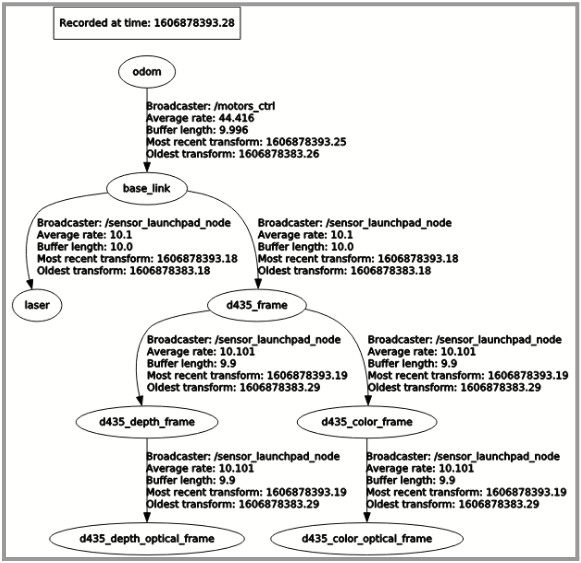
  * Ensure that all the robot links have an appropriate tf to the `odom` link
  * The tf tree can be visualized using `$ rosrun rqt_tf_tree rqt_tf_tree`

<figure><img src="https://3011557067-files.gitbook.io/~/files/v0/b/gitbook-x-prod.appspot.com/o/spaces%2F-MkBtlBrwlCbBifOLd-h-887967055%2Fuploads%2FlN8MqaHzqg4D27HAKp6t%2Fimage.png?alt=media&amp;token=c42f2c20-e0c9-406b-8c7f-8eba08cdcbdf" alt=""><figcaption><p>Example of TF Tree from rqt_tf_tree</p></figcaption></figure>

**TF for base\_link to scan:**

* Ensure that there is a **direct tf link** between the `base_link` frame and the `laser` frame as it is required by Seirios RNS

![Direct Link/TF from base\_link to laser is required](https://3011557067-files.gitbook.io/~/files/v0/b/gitbook-legacy-files/o/assets%2F-MkBtlBrwlCbBifOLd-h%2F-MkLYNXCrtuMK4JJzhAI%2F-MkL_nWKq8Vw3D0nNCqr%2Fimage.png?alt=media\&token=1d17a369-4408-43e5-89d9-d99166d8a709)

* [ ] **RVIZ sensor data visualisation**
  * Using RViz, visualize the sensor data. The fixed frame used should be `odom`
  * Add the tf visualization and ensure all the frames tfs have no warnings

![RVIZ TF Display Status (All Are OK, No Warnings)](https://3011557067-files.gitbook.io/~/files/v0/b/gitbook-legacy-files/o/assets%2F-MkBtlBrwlCbBifOLd-h%2F-MkLYNXCrtuMK4JJzhAI%2F-MkLa-VwBGbCfyv1CHR1%2Fimage.png?alt=media\&token=cb54f9ef-cc85-47ff-8e56-7289c102024e)


# Robot Checks

{% hint style="info" %}
Seirios is designed to work with robots of all shapes and sizes.

However, checking that the robot is working correctly **before software installation** is crucial to preventing compounding errors.
{% endhint %}

Robot Checks:

* [(0.5/4) Before Starting Robot Checks](/new-collection/seirios-rns/documentation/installation-and-integration-1/pre-installation-checks/robot-checks/0.5-4-before-starting-robot-checks)
* [(1/4) Linear Speed Calibration Check](/new-collection/seirios-rns/documentation/installation-and-integration-1/pre-installation-checks/robot-checks/1-4-linear-speed-calibration-check)
* [(2/4) Angular Speed Calibration Check](/new-collection/seirios-rns/documentation/installation-and-integration-1/pre-installation-checks/robot-checks/2-4-angular-speed-calibration-check)
* [(3/4) Odometry Check](/new-collection/seirios-rns/documentation/installation-and-integration-1/pre-installation-checks/robot-checks/3-4-odometry-check)
* [(4/4) Straight-line Check](/new-collection/seirios-rns/documentation/installation-and-integration-1/pre-installation-checks/robot-checks/4-4-straight-line-check)


# (0.5/4) Before Starting Robot Checks

Ensure robot is moving linearly at the right speed

Before starting Robot checks:&#x20;

1. Kill all Movel nodes (if you already have it previously installed)
2. Launch only the motor controller and the teleoperation keyboard twist for testing\
   &#x20;                                                               \[OR]\
   Run the following command:\
   `rostopic pub -r 10 /cmd_vel - for linear linear: x-0.1 for rotation only : angular: z-0.1`&#x20;


# (1/4) Linear Speed Calibration Check

Ensure robot is moving linearly at the right speed

{% hint style="warning" %}
A minimum speed of 0.1 - 0.5 m/s needs to be tested. Also, manually check if the robot covers the distance correctly. A video recording is encouraged to troubleshoot any issues that may arise.
{% endhint %}

1. Open a new terminal window. Execute this command: `rostopic pub /cmd_vel geometry_msgs/Twist "linear: x: 0.0 y: 0.0 z: 0.0 angular: x: 0.0 y: 0.0 z: 0.0"`
2. Change the `linear: x:` to  0.1-0.5 as we only want to move the robot straightly forward. Leave all the other values to 0.0.
3. Measure the distance the robot moved. And record the time between when the robot started to move and when the robot stopped. Calculate speed by dividing the distance over time.
4. Check whether your calculated speed matches up to the value that you have given for linear x.
5. If not, please recalibrate your wheels.

Alternatively, you may use `rosrun telelop_twist_keyboard teleop_twist_keyboard.py`. Similarly, give it a linear speed between 0.1-0.5. Then repeat Steps 3 - 5 above.

Note:

* If your robot is non-holonomic, it shouldn't be able to slide sideways. y should be 0.0.
* If your robot is not flight-capable, z should be 0.0.

**Validating Odometry Data**

We provide you with a script that enables you to verify the odometry data by inputting the velocity and duration. The robot will then move at the specified velocity for the given duration. Subsequently, the script will calculate and provide the distance traveled by the robot based on these inputs.

This will facilitate the verification of your odometry data, making it easier and more efficient for you.

You can download the script [here](https://drive.google.com/file/d/1d2XQhtyPX7hDUDS_dX6wVPJ6zm0XEpWe/view?usp=share_link).


# (2/4) Angular Speed Calibration Check

Angular speed calibration check - Test using pub /cmd\_vel for accurate result

{% hint style="warning" %}
Check the angular speed for at least 0.1-0.6 rad/s, and check whether the robot rotates correctly. A video recording is encouraged to troubleshoot any issues that may arise.
{% endhint %}

Likewise, repeat the same method to check angular speed calibration.&#x20;

1. Run `rostopic pub /cmd_vel geometry_msgs/Twist "linear: x: 0.0 y: 0.0 z: 0.0 angular: x: 0.0 y: 0.0 z: 0.0"`&#x20;
2. Set angular x value between 0.1-0.6. Leave the other values as 0.0.
3. Measure how much the robot turns. And similarly, record the time it took to turn.&#x20;
4. Check that your calculations match the value you set for angular z.

Alternatively, you may use `rosrun telelop_twist_keyboard teleop_twist_keyboard.py`. Set angular speed between 0.1-0.5. Then repeat Steps 3 - 5 above.

**Validating Odometry Data**

We provide you with a script that enables you to verify the odometry data by inputting the velocity and duration. The robot will then move at the specified velocity for the given duration. Subsequently, the script will calculate and provide the distance traveled by the robot based on these inputs.

This will facilitate the verification of your odometry data, making it easier and more efficient for you.

You can download the script [here](https://drive.google.com/file/d/1d2XQhtyPX7hDUDS_dX6wVPJ6zm0XEpWe/view?usp=share_link).


# (3/4) Odometry Check

Ensure odometry is working well

## Linear check

* Align the bot appropriately to test 3-4 meters of linear, straight distance without an angular component. Test using the following command in Terminal: `rostopic pub /cmd_vel geometry_msgs/Twist "linear: x: 0.0 y: 0.0 z: 0.0 angular: x: 0.0 y: 0.0 z: 0.0"`
* Restart motor&#x20;
* Check odom pose is zero.
* Publish only linear vel x: 0.1 and stop the bot at the 3-4 m mark.&#x20;
* Echo the odom topic: `rostopic echo /odom`.&#x20;
* Compare the pose of the updated odom with linear and angular bot travelled (offset 1-2%).&#x20;

## Angular check

* Align the bot properly. Mark the spot where the bot will begin rotating.&#x20;
* Restart the motors.
* Rotate the bot clockwise. Quaternion should be updated to negative.
* Restart the motor and rotate the bot anticlockwise. Quaternion should be updated to positive.
* Restart the motor. Rotate and stop the bot at the original marked spot.&#x20;
* Make sure that the angular pose is a 0 rad change.

**Validating Odometry Data**

We provide you with a script that enables you to verify the odometry data by inputting the velocity and duration. The robot will then move at the specified velocity for the given duration. Subsequently, the script will calculate and provide the distance traveled by the robot based on these inputs.

This will facilitate the verification of your odometry data, making it easier and more efficient for you.

You can download the script [here](https://drive.google.com/file/d/1d2XQhtyPX7hDUDS_dX6wVPJ6zm0XEpWe/view?usp=share_link).


# (4/4) Straight-line Check

Ensure no wheel slippage occurs and that robot is able to teleoperate in a straight line

* Move the robot straight, and echo the `/odom` topic.
* Align the wheels accordingly to test straight linear movement. It’s recommended to draw lines on the floor for accuracy.
* Give only linear speed. Check the robot is travelling straight. A slight deviation is acceptable (1 - 2 degrees), but no more than 5 degrees.


# 'Easy-deploy' for Seirios

{% hint style="danger" %}
Installation is easy with simple commands on the command line interface. Before you start, please ensure your system has both Ubuntu and ROS installed. Recommended;

**(x86\_64) Ubuntu 20.04 & ROS Noetic** *OR* **(arm64) Ubuntu 18.04 & ROS Melodic**
{% endhint %}

## Step 1

The easy-deploy package can be obtained from our Movel AI representative or can be downloaded from the following mirrors. Please ensure the right mirror for the right architecture (arm64 or x86 is selected)

Follow the instructions on the following pages to completely install Seirios RNS:

|                                          Google Drive Link                                         |         Mirror (Terabox)        |
| :------------------------------------------------------------------------------------------------: | :-----------------------------: |
|  [arm64](https://drive.google.com/drive/folders/1dKRrj40IiCe8WOkJMbwLIzxxyyHU08NO?usp=drive_link)  |  arm64 (currently unavailable)  |
| [x86\_64](https://drive.google.com/drive/folders/1AmAPjx3zZf7CRE7mAmF6T8-sUa3cl6O_?usp=share_link) | x86\_64 (currently unavailable) |

{% hint style="warning" %}
**A trial license of 15 days is included in this easy-deploy package.** Tuning of your robot parameters and configuration is required after installation. Please contact your Movel AI representative or email <sales@movel.ai> for support and assistance.
{% endhint %}

{% hint style="warning" %}
Custom features such as docking to charging stations are not included as it is a custom feature that requires development and integration. If you have a docking /custom feature code, please refer to [**this link**](https://docs.movel.ai/seirios-rns/documentation/ext-process-handler) for integration
{% endhint %}

Move the easy-deploy zip file to your home directory `/home/<USER>` and extract the zip using the Archive Manager (\<USER> refers to the account username).

<figure><img src="https://3011557067-files.gitbook.io/~/files/v0/b/gitbook-x-prod.appspot.com/o/spaces%2F-MkBtlBrwlCbBifOLd-h-887967055%2Fuploads%2FM3XgVvUgKqGSNWqq3R8Y%2Fimage.png?alt=media&amp;token=917aac77-85ef-4834-9337-ec324170ef25" alt=""><figcaption><p>Extract/Unzip Easy Deploy package</p></figcaption></figure>

<figure><img src="https://3011557067-files.gitbook.io/~/files/v0/b/gitbook-x-prod.appspot.com/o/spaces%2F-MkBtlBrwlCbBifOLd-h-887967055%2Fuploads%2Fd1VpyEs7pOFGkw7WQwpA%2Fimage.png?alt=media&amp;token=48fea8cf-641a-42d8-8b5d-c8866b1fc7f6" alt=""><figcaption><p>Extract/Unzip Easy Deploy package</p></figcaption></figure>

<figure><img src="https://3011557067-files.gitbook.io/~/files/v0/b/gitbook-x-prod.appspot.com/o/spaces%2F-MkBtlBrwlCbBifOLd-h-887967055%2Fuploads%2FOFNuJn12pVw6OAu1v6cD%2Fimage.png?alt=media&amp;token=3251ac55-80c4-44f9-9434-f2c242bfd9b8" alt=""><figcaption><p>Files in the Easy Deploy package</p></figcaption></figure>

## Step 2

1. Now, we need to run the installation in a Terminal
2. Right-click in the file explorer and open a Terminal in the extracted easy-deploy folder/directory

<figure><img src="https://3011557067-files.gitbook.io/~/files/v0/b/gitbook-x-prod.appspot.com/o/spaces%2F-MkBtlBrwlCbBifOLd-h-887967055%2Fuploads%2FsvTHH4lpbbV5SdgCJPpg%2Fimage.png?alt=media&amp;token=3a6f3d83-9c46-4814-a2ce-0f71af458082" alt=""><figcaption><p>“Open in Terminal” for extracted easy deploy folder</p></figcaption></figure>

<figure><img src="https://3011557067-files.gitbook.io/~/files/v0/b/gitbook-x-prod.appspot.com/o/spaces%2F-MkBtlBrwlCbBifOLd-h-887967055%2Fuploads%2F3AokE4ekvaaz194wqPcT%2Fimage.png?alt=media&amp;token=aa04bf32-434d-4fa7-b537-73d3932cafde" alt=""><figcaption><p>Directory easy-deploy in Terminal</p></figcaption></figure>

Then we move to the next part to install docker.


# Installing docker

1. The goal of Part 1 of the installation is to install **Docker** and it’s dependencies<br>
2. In the same directory in the Terminal, run the command `bash install-1-docker.sh`<br>
3. Wait for the installation to complete

<figure><img src="https://3011557067-files.gitbook.io/~/files/v0/b/gitbook-x-prod.appspot.com/o/spaces%2F-MkBtlBrwlCbBifOLd-h-887967055%2Fuploads%2FT9Qmji27IYoSR8N3MZGZ%2Fimage.png?alt=media&amp;token=a26d1522-4d03-424c-a3e7-6d6ac90dbacd" alt=""><figcaption><p>Successful installation of install-1-docker.sh</p></figcaption></figure>

Then we move to the last part to install Seirios-RNS.


# Installing Seirios RNS

1. The goal of Part 2 of the installation is to install **Seirios**, prepare the `catkin_ws`, and create the appropriate `docker-compose.yaml` file.<br>
2. In the same directory in Terminal, run the command `bash install-2-seirios.sh`<br>
3. Wait for the installation to complete<br>
4. Restart the PC/machine after the installation&#x20;

{% hint style="danger" %}
The script install\_2.sh will not overwrite existing files in /home/catkin\_ws , and will maintain backups of configuration files for safekeeping
{% endhint %}

<figure><img src="https://3011557067-files.gitbook.io/~/files/v0/b/gitbook-x-prod.appspot.com/o/spaces%2F-MkBtlBrwlCbBifOLd-h-887967055%2Fuploads%2Fnd3LNkIeAeG5Jq2CuzU1%2Fimage.png?alt=media&amp;token=4468f062-dfd6-4680-a2e5-f83b289b14a9" alt=""><figcaption><p>Successful installation of install-2-seirios.sh</p></figcaption></figure>

{% hint style="warning" %}
To view the remainder of days left of your trial licence, enter [`localhost:1947`](localhost:1947)in your browser of choice
{% endhint %}


# Starting Seirios

1. After restarting the PC/machine, **Seirios** will automatically start every time the machine powers up.
2. To start Seirios manually, open a Terminal and enter your workspace by running the command `cd ~/catkin_ws/movel_ai`
3. Run `docker-compose up` to start the docker containers for **Seirios** (output will be shown in the terminal)\
   Run `docker-compose up -d` to start **Seirios** in the background (no output will be shown in the terminal)
4. To stop **Seirios**, go into the terminal where **Seirios** is currently running, and use **Ctrl+C** *(if you run by using docker-compose up)* OR run `docker-compose down` in another terminal with the same directory. This will lead to the Docker containers being stopped.
5. To check for docker containers running at any point of time, run `docker ps`. \
   If Seirios is up and running, you should expect to see the different containers of **Seirios** components being displayed. Otherwise, it should yield an empty table.\
   You can also check the version of **Seirios** by using `docker ps`.


# Hardware Integration

1. Launch the robot's motor and sensor drivers.<br>

2. Run `rosnode list` to find the names of the ROS nodes of the drivers.<br>

3. Run `rosnode info <node>` , where \<node> is the name of the nodes determined from step 2. \
   Sample output:

   <pre><code>$ rosnode info /motors_ctrl 
   <strong>--------------------------------------------------------------------------------
   </strong><strong>Node [/motors_ctrl]
   </strong>Publications: 
    * /odom [nav_msgs/Odometry]
    * /odom_euler [std_msgs/String]
    * /robot_batt_perc [std_msgs/Int16]
    * /rosout [rosgraph_msgs/Log]
    * /tf [tf2_msgs/TFMessage]

   Subscriptions: 
    * /cmd_vel [geometry_msgs/Twist]
   </code></pre>

4. From the information displayed from running step 3, make sure that:&#x20;
   1. The robot motor driver node subscribes to the topic `/cmd_vel` for velocity commands.&#x20;
   2. The Lidar driver node publishes laser data to the topic `/scan`<br>

5. If the topic names are not set as in step 4, remap them in the launch files of the drivers by adding a line in the launch files in the following format:

   ```
   <node ...
     <remap from="<original topic name>" to="/cmd_vel"/>
   </node>
   ```

6. While the robot base and lidar are launched, run `rosrun rqt_tf_tree rqt_tf_tree` and check that the frames are linked in this order: ***odom → base\_link → laser***.<br>

   <figure><img src="https://3011557067-files.gitbook.io/~/files/v0/b/gitbook-x-prod.appspot.com/o/spaces%2F-MkBtlBrwlCbBifOLd-h-887967055%2Fuploads%2FwsBMcQL2cVj1nNLLQvDW%2Fimage.png?alt=media&amp;token=6b46feaa-a068-4c16-a9b7-d8312c005f3c" alt=""><figcaption></figcaption></figure>

7. If the frames of **base\_link** and ***laser*** are not linked correctly, there are two options you can link them. You can select one of them. (Prefer use **Broadcast a transformation**)

   1. **Broadcast a transformation** refer to this [link](http://wiki.ros.org/navigation/Tutorials/RobotSetup/TF#Broadcasting_a_Transform).
   2. **Create static transformation**. Add the following line in the launch file of the lidar drivers:

      ```yaml
      <node pkg="tf" type="static_transform_publisher" name="base_link_to_laser" args="0.22 0 0.1397 0 0 0 base_link laser 100" />
      ```

      *In “args”, x = 0.22, y = 0, z = 0.1397, yaw = 0, pitch = 0, roll = 0 for this example. This should provide a transformation between the base\_link and laser frame*\
      *If you use static transformation, there will be several issues, one of the most is localizer mode, the UI won't visualize a laser scan in localizer mode.*

8. With the driver nodes running, run RVIZ using: `rosrun rviz rviz`, do the following checks:&#x20;
   1. Laser data `("/scan")` can be seen and is orientated in the correct direction.
   2. Movement direction during teleoperation is correct.
   3. Robot odometry `("/odom")` is updating correctly during teleoperation.


# Navigation Tuning

Taking the node `“/motors_ctrl”` as an example. It is publishing to `“/odom”` topic with `“nav_msgs/Odometry”` message type, along with the other topics in the list. It also subscribes to `“/cmd_vel”` topic with message type `“geometry_msgs/Twist”`

1. Go into the folder ‘/home/\<user>/catkin\_ws/movel\_ai/config/movel/config/’<br>
2. In the parameter file **costmap\_common\_params.yaml**, ensure that the robot footprint is defined correctly.
   1. If the robot footprint is a polygon, configure the footprint parameter and comment out robot\_radius. For example:

      ```
      footprint: [[0.2, 0.2], [-0.2, 0.2], [-0.2, -0.2], [0.2, -0.2]]
      #robot_radius: 0.18
      ```
3. Here, the robot has a square footprint with the xy coordinates of the four corners as shown, while robot\_radius is commented out.<br>
   1. If the robot footprint is circular, configure the robot\_radius parameter and comment out footprint. For example:

      ```
      #footprint: [[0.2, 0.2], [-0.2, 0.2], [-0.2, -0.2], [0.2, -0.2]]
      robot_radius: 0.18
      ```
4. In base\_local\_planner\_params.yaml:
   1. Go to “`#Robot`” section. To tune the speed of the robot, configure `max_vel_x` for linear speed, and `max_vel_theta` for angular speed.
      1. If the robot is not reaching the max speed, increase `acc_lim_x` and `acc_lim_theta`.&#x20;
      2. In footprint\_model, select a suitable model type and configure the corresponding parameters.
   2. In “`#Obstacles`” section, tune the value of `min_obstacle_dist` to set how far away the robot should keep away from obstacles. Reduce this parameter value if the robot is required to go through narrow spaces.<br>
5. If the autonomous navigation motion is jerky, go to “catkin\_ws/movel\_ai/config/cmd\_vel\_mux/config”, find cmd\_vel\_mux.yaml, and increase the value set for `timeout_autonomous`.<br>
6. For in depth tuning of base\_local\_planner\_params.yaml, refer to <http://wiki.ros.org/teb_local_planner>.


# Full Licence Activation

{% hint style="success" %}
Skip this step if you are only evaluating Seirios RNS on a trial license
{% endhint %}

{% hint style="warning" %}
To view the remainder of the days left of your trial license, enter [`localhost:1947`](localhost:1947)in your browser of choice
{% endhint %}

{% hint style="info" %}
The Seirios RNS license is specific to the individual PC/robot that you are installing it on. The license that has been activated **cannot be transferred and used on another machine**.
{% endhint %}

1. Retrieve the c2v file&#x20;

   1. Generate your fingerprint of the PC by executing this command:\
      `cd ~/catkin_ws/movel_ai/license/`\
      `./hasp_update_34404 f hasp_34404.c2v` (x86) \
      `./hasp_update_34404_arm64 f hasp_34404.c2v` (arm64)&#x20;
   2. You will see the new c2v file on the `/home/<USER>/catkin_ws/movel_ai/license/hasp_34404.c2v`

   `c2v` (customer-to-vendor) is a fingerprint of your PC/robot that Movel AI requires to generate a licensed product&#x20;

2. Send a c2v file to <sales@movel.ai> **or** your Movel AI representative to request the license activation <br>

3. Movel AI will send a v2c file with installation instructions<br>

4. Send Movel AI the updated c2v file with the license activated<br>

5. Keep the v2c and c2v files safe for future reference with Movel AI


# REST APIs

Seirios RNS comes with REST APIs for you to utilize - for integration and advanced deployments. To view the list of APIs available:&#x20;

\
Please enter `<IPaddress>:8000/api-docs/swagger` on your robot/PC.

Alternatively, please download this pdf to explore available APIs ⬇️

{% file src="/files/vGkxCPOVa7PnZBWd1cn6" %}


# Hardware Related

Seirios supports a wide range, variety, and combination of sensors on robots for various applications.

The following are sensors tried and tested with Seirios RNS on various robots types

{% hint style="info" %}
If you do not see a familiar or preferred sensor below, benchmark against the available sensor's technical specifications. Contact us at <sales@movel.ai> for further inquiries or clarifications
{% endhint %}

## PC & CPU Requirements

Computers, mini PCs, and other developer boards come with either x86 or ARM64 chips. Click next to see hardware that has been tried and tested with Seirios.

{% hint style="warning" %}
Processing power is crucial to running Seirios RNS with your robot. With more sensors installed, more computing power will be required to be allocated - and less will be available for Seirios
{% endhint %}

The following are recommended PC/board specifications to take advantage of every feature available on Seirios RNS

* PC with *x86* processor (4 cores with 8 threads @ >3.1GhZ) OR *ARM64* (8 cores)  \[We recommend you to use min i7 gen 8th]
* 8GB DDR4 RAM
* 256GB SSD
* Ubuntu 20.04 & ROS Noetic (x86) OR Ubuntu 18.04 & ROS Melodic (ARM64)
* WiFi connectivity 802.11a/b/g/n/ac

*The following pages are specific PCs and developer boards that we have tested with Seirios RNS*

{% hint style="info" %}
x86-64 systems are widely used in most robotics systems and robots with compact-form PCs. It has high computing power and supports multiple hardware sensors connected to it.

Be sure that your robotic system has a large enough battery to accommodate its operations
{% endhint %}

### PCs

{% tabs %}
{% tab title="x86-64" %}

![Intel® NUC Kit NUC8i7HNK](https://www.intel.com/content/dam/www/public/us/en/images/product/ark-shop/nuc-kit-nuc8i7hvk-left-angle-550x550.jpg)

{% embed url="<https://ark.intel.com/content/www/us/en/ark/products/126141/intel-nuc-kit-nuc8i7hnk.html>" %}
{% endtab %}

{% tab title="AMD6" %}

{% hint style="warning" %}
Coming soon!
{% endhint %}
{% endtab %}
{% endtabs %}

### ARM / ARMv8-A

{% hint style="warning" %}
Seirios RNS is compatible with the following ARM-based systems and kits. ARM-based boards are power efficient but lack computing power (compared to x86-64 / AMD6 systems.&#x20;

Some computing-intensive features such as **3D LiDAR mapping and navigation** or **multisensor support (eg 3 different sensors)** will not be available on these boards.
{% endhint %}

{% tabs %}
{% tab title="Jetson Xavier AGX" %}
![Jetson AGX Xavier Developer Kit](https://developer.nvidia.com/sites/default/files/akamai/embedded/images/jetsonXavier/Xavier-White_Cropped_2.jpg)

{% embed url="<https://developer.nvidia.com/embedded/jetson-agx-xavier-developer-kit>" %}
{% endtab %}

{% tab title="Jetson Xavier NX" %}
![Jetson Xavier NX Developer Kit](https://developer.nvidia.com/sites/default/files/akamai/embedded/images/jetsonNX/Jetson_Xavier_NX-Developer_Kit-Front_Top_Right.png)

{% embed url="<https://developer.nvidia.com/embedded/jetson-xavier-nx-devkit>" %}
{% endtab %}
{% endtabs %}

## Cameras

{% hint style="info" %}
Cameras are crucial for navigation and localization. Some brands/models have IMU integrated for an additional dimension for precision navigation.
{% endhint %}

{% tabs %}
{% tab title="Zed" %}

{% embed url="<https://cdn.stereolabs.com/assets/images/zed/zed-product-main.jpg>" %}
ZED Camera
{% endembed %}

{% embed url="<https://www.stereolabs.com/zed>" %}
{% endtab %}

{% tab title="D455" %}
![Intel® RealSense™ Depth Camera D455](https://www.intelrealsense.com/wp-content/uploads/2020/07/depth-camera-d455-intel-realsense.jpg)

{% embed url="<https://www.intelrealsense.com/depth-camera-d455>" %}
{% endtab %}

{% tab title="D435i" %}
![Intel® RealSense™ D435i](https://www.intelrealsense.com/wp-content/uploads/2019/02/imu_stereo_DT_d435_front-crop1a-1-1.png)

{% embed url="<https://www.intelrealsense.com/depth-camera-d435i>" %}
{% endtab %}

{% tab title="D435" %}
![Intel® RealSense™ D435](https://www.intelrealsense.com/wp-content/uploads/2019/02/stereo_DT_d435_front-crop1a.png)

{% embed url="<https://www.intelrealsense.com/depth-camera-d435>" %}
{% endtab %}
{% endtabs %}

## Omnidirectional Cameras

{% hint style="info" %}
360° cameras are useful for many applications such as cleaning and security
{% endhint %}

{% tabs %}
{% tab title="Dreamvu PAL Ethernet" %}
![PAL Ethernet](https://dreamvu.com/wp-content/uploads/2020/11/PAL-Enethub-150x150-1.png)

{% embed url="<https://dreamvu.com/pal-ethernet>" %}
{% endtab %}

{% tab title="Dreamvu PAL USB" %}

![PAL USB](https://dreamvu.com/wp-content/uploads/2020/11/hub-150x150-1.png)

{% embed url="<https://dreamvu.com/pal-usb>" %}
{% endtab %}
{% endtabs %}

## LiDARs

{% hint style="info" %}
Light Detection and Ranging (LiDAR) sensors are useful in many settings, situations, and applications. It does not rely on visual light for path planning, navigation, and localization.
{% endhint %}

{% tabs %}
{% tab title="Leishen N301" %}

![Leishen N301](https://3011557067-files.gitbook.io/~/files/v0/b/gitbook-x-prod.appspot.com/o/spaces%2F-MkBtlBrwlCbBifOLd-h-887967055%2Fuploads%2FYVPUAE601sNcu6NAScJk%2F773bd7f6516daf4f3fa8c395fc42ded6.png?alt=media\&token=1c2005a1-0fc8-43a1-b8db-55b15b468b7b)

{% embed url="<http://www.lslidar.com/en/tof/74>" %}
{% endtab %}

{% tab title="Leishen C16" %}
![Leishen C16](https://3011557067-files.gitbook.io/~/files/v0/b/gitbook-x-prod.appspot.com/o/spaces%2F-MkBtlBrwlCbBifOLd-h-887967055%2Fuploads%2Fi1Bt9STYPUVMBuXR31Yr%2F936662b930d4d22569dcc432bc472912.png?alt=media\&token=0054deb1-1d7b-405f-9bb8-7e61fd8c1b30)

{% embed url="<http://www.lslidar.com/en/cx/103>" %}
{% endtab %}

{% tab title="RS-LIDAR-16" %}

![RS-LiDAR-16](https://cdn.robosense.cn/20210408171741_93585)

{% embed url="<https://www.robosense.ai/en/rslidar/RS-LiDAR-16>" %}
{% endtab %}

{% tab title="Velodyne" %}
![Velodyne Ultra Puck](https://eak2mvmpt4a.exactdn.com/wp-content/uploads/2019/08/Velodyne_Ultrapuck.png?strip=all\&lossy=1\&ssl=1\&fit=355,355)

{% embed url="<https://velodynelidar.com/products/ultra-puck>" %}
{% endtab %}

{% tab title="Hokuyo" %}

{% endtab %}

{% tab title="RPLiDAR S1" %}
![LiDAR S1](https://www.slamtec.com/images/s1/pc/summary-section4-cn.png)

{% embed url="<https://www.slamtec.com/en/Lidar/S1>" %}
{% endtab %}
{% endtabs %}

## Ultrasonic Sensors

{% hint style="info" %}
Useful at short ranges, low-lying obstacles can be detected using ult
{% endhint %}

{% tabs %}
{% tab title="MB1030 LV-MaxSonar-EZ3" %}

![MB1030 LV-MaxSonar-EZ3](https://www.maxbotix.com/wp-content/uploads/2017/01/LV-EZ-Ultrasonic-Range-Finder-600x600.jpg)

{% embed url="<https://www.maxbotix.com/ultrasonic_sensors/mb1030.htm>" %}
{% endtab %}
{% endtabs %}

## Infrared Sensors

{% hint style="info" %}
A low-powered sensor; usually used for non-opaque obstacle detection such as glass or plastic panels
{% endhint %}

{% tabs %}
{% tab title="Sharp GP2Y0A41SK0F Analog Distance Sensor 4-30cm" %}
![Sharp GP2Y0A41SK0F Analog Distance Sensor 4-30cm](https://a.pololu-files.com/picture/0J5068.600x480.jpg?177f3d11af1e7340760d9e83fab61489)

{% embed url="<https://www.pololu.com/product/2464>" %}
{% endtab %}
{% endtabs %}

{% hint style="warning" %}
If you are unsure if your sensor(s) is/are supported, please contact us at <sales@movel.ai>
{% endhint %}


# External Process Handler

external\_process\_handler is a package for clients to run their own tasks into Seirios.

## &#x20;How to setup your tasks with External Process Handler

This guide shows you how to integrate your own programs as a plugin into Seirios using `external_process_handler`package.

### 1. Install movel\_seirios\_message&#x20;

**Check your Ubuntu + ROS version.**&#x20;

* **For Ubuntu 20.04, ROS Noetic users:**

Go here to download the .deb package: <https://drive.google.com/drive/folders/1hpi5NaSkFyr6QVXs83taxeHjWLulw8SH>

Move the .deb into your home folder. Open a terminal window, run the command `sudo apt install ./ros-noetic-movel-seirios-msgs_0.0.0-0focalXXX64.deb` to instal&#x6C;*.*

* **Else:**

Git clone this repo here: <https://gitlab.com/movelai_public/movel_seirios_msgs/-/tree/master/srv> into catkin\_ws/src. Then go back to /catkin\_ws to run `catkin_make.`

### 2. Integration with Seirios

You need to mount your own packages/nodes as a plugin to task\_supervisor for Seirios to run it.

`File to modify: ../config/task_supervisor/config/`**`task_supervisor.yaml`**

Look for the plugins section in the config to add your own plugin. You can give any name and type. For type, give a number not used by previous plugins.

```yaml
plugins:
  - {name: detecting, type: 10, class: 'external_process_handler::ExternalProcessHandler'}
```

Then at the end of the file, create a new section with the same name you give for your plugin e.g. detecting. Then paste in the parameters.&#x20;

```yaml
detecting:
  watchdog_rate: 2.0
  watchdog_timeout: 0
  service_req: true
  launch_req: false
  service_start: "/external_process/trigger_detecting" #required if service_req is true
  service_start_msg: "" #optional  if there is any particular msg needs to sent or else empty string 
  service_stop: "/external_process/stop_detecting" #required if service_req is true
  service_stop_msg: "" #optional  if there is any particular msg needs to sent or else empty string 
  #launch_package: "yocs_velocity_smoother" #required if launch_req is true
  #launch_file: "standalone.launch"  #required if launch_req is true
  #launch_nodes: "/nodelet_manager /velocity_smoother" #required if launch_req is true
  topic_cancel_req: true
  topic_process_cancel: "external_process/cancel_publish"

```

### 3. Launching your nodes with Seirios

There are different ways to launch your own codes. Choose one in the below subsection that best suits you.

#### 3.1. Launch with your own code

***Start & stop***&#x20;

You need to write a ROS service service\_start with start\_handler as the callback function to start your code.&#x20;

And you need another ROS service service\_stop with stop\_handler to stop your code. Names must be service\_start and service\_stop.&#x20;

You must use the movel\_seirios\_msgs package for msg and srv.

(For ROS C++ only) Add movel\_seirios\_msgs to package.xml and CMakeLists.txt.

Then in task\_supervisor.yaml file. Change `service_req: true` and `service_start` and `service_stop` params to your own topics.

***Stop with topic (optional)***&#x20;

IF you have your own script to stop the launch.

Write a subscriber topic\_process\_cancel to subscribe to the UI topic. Inside the handle\_publish\_cancel callback, include your own codes to stop.

Then change the params `topic_cancel_req: true` and `topic_process_cancel` to your own topic.

***Getting status (optional)***&#x20;

IF you are launching your program from a launch file. Write a publisher client\_status that publishes 2 if the program runs successfully or 3 if it fails.

Then change `client_status: true`.

#### 3.2. Launch from the UI

Go to Custom Task UI, and choose Seirios Engine as your Execute Engine. Similarly, you need to give a task type number that is not used by other task supervisor plugins.\
\
Then, you will need a custom `service_start_msg` and/or `service_stop_msg` to run or stop your external process.

Input a Payload in the JSON format e.g. `{“service_start_msg”: “/eg/payload/start”, “service_stop_msg”:”/eg/payload/stop”}` to customize the  parameters.

Payload has to be parsable in JSON format so remember the “ ”s.

### 4. Sample Codes

For reference only.

{% tabs %}
{% tab title="Python" %}

```python
#!/usr/bin/env python3
import rospy
from movel_seirios_msgs.srv import StringTrigger, StringTriggerResponse # like setbool
from std_msgs.msg import Bool, UInt8

class Pytest:

    def __init__(self):
        print('starting test node')
        self.node = rospy.init_node('python_test')

        self.service_start = rospy.Service('/external_process/trigger_detecting', StringTrigger, self.start_handler)
        self.service_stop = rospy.Service('/external_process/stop_detecting', StringTrigger, self.stop_handler)
        
        # IGNORE dummy_publisher - just to simulate UI cancel topic
        self.dummy_publisher = rospy.Publisher('/cancel_publish', Bool, queue_size=1)

        self.topic_process_cancel = rospy.Subscriber('/cancel_publish', Bool, self.handle_publish_cancel)
        self.client_status = rospy.Publisher('/external_process/client_status', UInt8, queue_size=1)

        self.flag = True

    def start_handler(self, req):
        print('inside start handler')

        start_msg = StringTriggerResponse() 
        start_msg.success = True
        start_msg.message = 'starting detect'

        self.flag = True
        self.publish_client_status()

        while(self.flag):
            print('executing something')
            rospy.sleep(1)
    

        return start_msg # return must be [success, message format]

    def stop_handler(self, req):
        print('inside stop handler')

        self.flag = False
        print('stop handler called')
        stop_msg = StringTriggerResponse()
        stop_msg.success = False
        stop_msg.message = 'stopping detect'

        return stop_msg
    
    # IGNORE if you are not using a topic to stop your code
    def handle_publish_cancel(self, req):
        print("inside publish cancel", req.data)

        cancel_trigger = req.data
        if(cancel_trigger):
            print('executing cancel stuff') # replace print statement
    
    
    # IGNORE if you are not using launch files
    def publish_client_status(self):
        print("publish client status called")
        
        cstatus = UInt8()
        
        #Dummy code
        #Decide how do you determine if your launch file is successful
        #And replace the if-else statement
        if (self.flag == True):
            cstatus.data = 2 # if start_handler successfully called, task is successful and return 2
        else:
            cstatus.data = 3 # else task not successful, return 3

        self.client_status.publish(cstatus)


if __name__ == '__main__':

    py_test = Pytest()
    #py_test.publish_cancel()

    rospy.spin()
```

{% endtab %}

{% tab title="C++" %}

```cpp
#include <ros/ros.h>
#include <std_msgs/Bool.h>
#include <std_msgs/UInt8.h>
#include <movel_seirios_msgs/StringTrigger.h>


class Cpptest {

    private:

        ros::ServiceServer service_start;
        ros::ServiceServer service_stop;

        ros::Publisher dummy_publisher;
        ros::Subscriber topic_process_cancel;

        ros::Publisher client_status;
        bool flag;

    public:
        Cpptest(ros::NodeHandle *nh) {
            service_start = nh->advertiseService("/external_package/triggering_detect_cpp", &Cpptest::start_handler, this);
            service_stop = nh->advertiseService("/external_package/stopping_detect_cpp", &Cpptest::stop_handler, this);

            // Ignore dummy_publisher - just to simulate ui cancel button
            dummy_publisher = nh->advertise<std_msgs::Bool>("/cancel_publish_cpp", 10);
            topic_process_cancel = nh->subscribe("/cancel_publish_cpp", 1, &Cpptest::handle_publish_cancel, this);

            client_status = nh->advertise<std_msgs::UInt8>("/external_process/client_status_cpp", 10);
        
        }

        bool start_handler(movel_seirios_msgs::StringTrigger::Request &req, movel_seirios_msgs::StringTrigger::Response &res) {
            std::cout << "inside start handler\n";
            
            res.success = true;
            res.message = "starting detect";
            //std::cout << res << "\n";

            flag = true;
            publish_client_status();
            std::cout << "start handler flag "<< flag << "\n";

            return true;
        }

        bool stop_handler(movel_seirios_msgs::StringTrigger::Request &req, movel_seirios_msgs::StringTrigger::Response &res) {
            std::cout << "inside stop handler\n";
            
            res.success = false;
            res.message = "stopping detect";
            //std::cout << res << "\n";

            flag = false;
            std::cout << "stop handler flag "<< flag << "\n";

            return true;
        }        

        // Ignore this method if not subscribing to stop topic
        void handle_publish_cancel(const std_msgs::Bool& msg) {
            std::cout << "inside handle publish cancel\n";

            bool cancel_trigger;
            cancel_trigger = msg.data;
            //std::cout << "published msg " << cancel_trigger << "\n";
            if(cancel_trigger){
                std::cout << "do canceling stuff. cancel_trigger: " << cancel_trigger << "\n";
            }
        }

        // Ignore this method if not using launch
        void publish_client_status() {
            std::cout << "publish client status called\n";

            std_msgs::UInt8 cstatus;

            if(flag) {
                cstatus.data = 2;
            }
            else {
                cstatus.data = 3;
            }

            std::cout << "client status " << cstatus << "2 for success, 3 for fail \n";
            client_status.publish(cstatus);

        }

};

int main(int argc, char** argv) {
    
    ros::init(argc, argv, "cpp_test");
    ros::NodeHandle nh;
    
    Cpptest cpp_test(&nh);
 
    ros::spin();

    return 0;
}
```

{% endtab %}
{% endtabs %}


# TEB Tuning Guide

Timed Elastic Band (TEB) locally optimizes the robot's trajectory with respect to execution time, distance from obstacles and kinodynamic constraints at runtime.

## How to refine `teb_local_planner` for navigation

This guide is for you if you choose to use `teb_local_planner` to navigate your robots. For more information, [click here](http://wiki.ros.org/teb_local_planner).

### 1. Setting up

#### 1.1. Configure local planner&#x20;

> Filepath: catkin\_ws/movel\_ai/config/movel/config/
>
> File to modify: **base\_local\_planner\_params.yaml**

Note that config files for local planner is located in the `movel` package. In the yaml file itself, you see there are actually 3 local planners included. But we will only use one of them. Uncomment the entire long section under `TebLocalPlannerROS`.&#x20;

{% hint style="info" %}
One good practice will be to include only things you need (uncomment if previously commented) and comment out the rest.
{% endhint %}

These are the parameters that can be configured. Will explain how to tune these parameters later.&#x20;

{% tabs %}
{% tab title="base\_local\_planner\_params.yaml" %}

```yaml
TebLocalPlannerROS:

  odom_topic: /odom
  #odom_topic: /rtabmap/odom
  map_frame: map
      
  # Trajectory
    
  teb_autosize: True
  dt_ref: 0.3 #0.2
  dt_hysteresis: 0.1
  global_plan_overwrite_orientation: True
  max_global_plan_lookahead_dist: 3.0
  feasibility_check_no_poses: 5
    
  # Robot
          
  max_vel_x: 0.40 #0.25 
  max_vel_x_backwards: 0.4 #0.2
  max_vel_theta: 1.0 #0.5
  acc_lim_x: 0.5 # 0.2
  acc_lim_theta: 0.6283 #0.5, 0.26
  min_turning_radius: 0.0
  footprint_model: # types: "point", "circular", "two_circles", "line", "polygon"
    type: "polygon" #"circular" 
    radius: 0.38 # for type "circular"
    #line_start: [-0.3, 0.0] # for type "line"
    #line_end: [0.3, 0.0] # for type "line"
    #front_offset: 0.2 # for type "two_circles"
    #front_radius: 0.2 # for type "two_circles"
    #rear_offset: 0.2 # for type "two_circles"
    #rear_radius: 0.2 # for type "two_circles"
    vertices: [ [0.26, 0.26], [0.26, -0.26], [-0.26, -0.26], [-0.26,0.26] ]   # for type "polygon"

  # GoalTolerance
      
  xy_goal_tolerance: 0.2 #0.2
  yaw_goal_tolerance: 0.1571
  free_goal_vel: False
      
  # Obstacles
      
  min_obstacle_dist: 0.05
  inflation_dist: 0.0
  dynamic_obstacle_inflation_dist: 0.05
  include_costmap_obstacles: True
  costmap_obstacles_behind_robot_dist: 0.1
  obstacle_poses_affected: 25 #30
  costmap_converter_plugin: ""
  costmap_converter_spin_thread: True
  costmap_converter_rate: 5

  # Optimization
      
  no_inner_iterations: 5 #5
  no_outer_iterations: 4 #4
  optimization_activate: True
  optimization_verbose: False
  penalty_epsilon: 0.1
  weight_max_vel_x: 2 #2
  weight_max_vel_theta: 1 #1
  weight_acc_lim_x: 1 # 1
  weight_acc_lim_theta: 1 # 1
  weight_kinematics_nh: 1000 #1000
  weight_kinematics_forward_drive: 1000 #1000
  weight_kinematics_turning_radius: 1 #1 #only for car-like robots
  weight_optimaltime: 1.0 #1
  weight_obstacle: 50 #50
  weight_viapoint: 5.0 #5.0 #1.0
  weight_inflation: 0.1 #0.1
  weight_dynamic_obstacle: 10 # not in use yet
  selection_alternative_time_cost: False # not in use yet

  # Homotopy Class Planner

  enable_homotopy_class_planning: False #True
  enable_multithreading: True
  simple_exploration: False
  max_number_classes: 2 #4
  roadmap_graph_no_samples: 15
  roadmap_graph_area_width: 5
  h_signature_prescaler: 0.5
  h_signature_threshold: 0.1
  obstacle_keypoint_offset: 0.1
  obstacle_heading_threshold: 0.45
  visualize_hc_graph: False

  #ViaPoints
  global_plan_viapoint_sep: 0.5 #negative if none
  via_points_ordered: False #adhere to order of via points

  #Feedback
  publish_feedback: true #false
```

{% endtab %}
{% endtabs %}

{% hint style="warning" %}
**Warn:** yaml forbids tabs. Do not use tabs to indent when editing yaml files. Also, check your indentations align properly.
{% endhint %}

#### 1.2. Configure velocity setter

After configuring Seirios to use teb planner, you need to sync the velocity with maximum velocity specified by teb planner.&#x20;

> Filepath:  catkin\_ws/movel\_ai/config/velocity\_setter/config/
>
> File to modify: **velocity\_setter.yaml**

{% tabs %}
{% tab title="velocity\_setter.yaml" %}

```yaml
local_planner: "TebLocalPlannerROS"
parameter_name_linear: "max_vel_x"
parameter_name_angular: "max_vel_theta"
```

{% endtab %}
{% endtabs %}

Check `local_planner` match the name of the planner in the base local planner configuration. You are configuring the maximum velocities to be the maximum velocities you specified in teb planner.

#### 1.3. Checks

* [ ] `rostopic list` in terminal to check you have `/odom` published.
* [ ] Planners require a map to work so make sure you have already mapped the location you want to navigate in.&#x20;
* [ ] Boot up rviz, change your Fixed Frame to `/map`.
* [ ] In Seirios, load the map from the library.

### 2. Localizing your robot

**rviz:** Use the 2D Pose Estimator tool to pinpoint the location of your robot on the map. You can use LaserScan to help you – increase the Size (m) to at least 0.05 and try to match the lines from the LaserScan as closely as possible with the map.

**Seirios:** Go to Localize. Use either your keyboard or the joystick button to align the laser with the map as closely as possible.&#x20;

#### 2.1. AMCL configurations

> Filepath: catkin\_ws/movel\_ai/config/movel/config/amcl.yaml
>
> File to modify: **amcl.yaml**

Amcl configuration file is in the same directory as base\_local\_planner\_params.yaml.

Similarly, there are a lot of paramters in the amcl file although we are only interested in these 2 parameters:

{% tabs %}
{% tab title="amcl.yaml" %}

```yaml
min_particles: 50
max_particles: 1000
```

{% endtab %}
{% endtabs %}

Configure `min_particles` and `max_particles` to adjust the precision.&#x20;

{% hint style="info" %}
You can increase the values if you want a more precise localization.&#x20;

However, tune the values with respects to the size of your map. Too many particles on a small map means there are redundant particles which only wastes computing power.

&#x20;[Click here](http://wiki.ros.org/amcl) for more information.
{% endhint %}

#### 2.2. Checks

* [ ] Robot's position in rviz/Seirios must correspond to the actual position of the robot as accurately as possible. Inaccurate localization could cause problems such as bad routing, robot going to restricted areas, robot getting stuck at awkward corners etc.

### 3. Tuning `teb_local_planner` parameters

This section provides some suggestions on what values to give to the long list of parameters for TebLocalPlannerROS. Go back to the same base\_local\_planner\_params.yaml file.

{% hint style="info" %}
TEB requires a lot of tuning to get it to behave the way you want. Probably a lot of it is through trial and error.&#x20;

For all kinds of robot tuning, always refer to the robot manufacturer’s configs. Whatever params you set must be within what that is handleable by your robot.

**General tip:** Make changes to only one/a few parameters at a time to observe how the robot behaves.
{% endhint %}

Tuneable parameters can be grouped into the following categories

* Robot
* Goal Tolerance
* Trajectory
* Obstacles
* Optimisation

#### 3.1. Robot

Tune robot related params with respects to the configurations specified by the manufacturer. i.e. The values set for velocity and acceleration should not exceed the robot's hardware limitations.

**Kinematics**

`vel` parameters limits how fast the robot can move. `acc` parameters limits how fast robot can accelerate. `_x` specifies linear kinematics whereas `_theta` specifies angular kinematics.&#x20;

```yaml
  max_vel_x: 0.40 #0.25 
  max_vel_x_backwards: 0.4 #0.2
  max_vel_theta: 1.0 #0.5
  acc_lim_x: 0.5 # 0.2
  acc_lim_theta: 0.6283 #0.5, 0.26
```

**Footprint Model**

Literally a footprint. :footprints: Ideally, configure the footprint to be slightly bigger than the actual measurement of the robot. `footprint_model` should be configured with respects to the robot's measurements.

```yaml
 footprint_model: # types: "point", "circular", "two_circles", "line", "polygon"
    type: "polygon" #"circular" 
    radius: 0.38 # for type "circular"
    #line_start: [-0.3, 0.0] # for type "line"
    #line_end: [0.3, 0.0] # for type "line"
    #front_offset: 0.2 # for type "two_circles"
    #front_radius: 0.2 # for type "two_circles"
    #rear_offset: 0.2 # for type "two_circles"
    #rear_radius: 0.2 # for type "two_circles"
    vertices: [ [0.26, 0.26], [0.26, -0.26], [-0.26, -0.26], [-0.26,0.26] ]   # for type "polygon"
```

You must indicate the `type` of the robot footprint. Different types include `polygon`, `circular`, `two_circles`, `line`, `point` etc. For simplicity sake, footprints are usually circular or polygon. [Click here](http://wiki.ros.org/teb_local_planner/Tutorials/Obstacle%20Avoidance%20and%20Robot%20Footprint%20Model) for more footprint information.

`radius` is required for `type: "circular"`

`vertices` is required for `type: "polygon"`

#### 3.2. Goal Tolerance

Specifies how much deviation from the goal point that you are willing to tolerate.

```yaml
  xy_goal_tolerance: 0.2 #0.2
  yaw_goal_tolerance: 0.1571
```

`xy_goal_tolerance` is the acceptable linear distance away from the goal, in meters.&#x20;

{% hint style="info" %}
Should not set `xy` value too high, else the robot will stop at a very different location. However, some leeway is required to account for robot drift etc.
{% endhint %}

`yaw_goal_tolerance` is the deviation in the robot's orientation. i.e. Goal specifies that the robot should face directly in front of the wall but in actual, the robot faces slightly to the left.&#x20;

{% hint style="info" %}
Should not give a too tight `yaw` tolerance, else the robot could be jerking around just to get the orientation right. Which might not be ideal in terms of efficiency.
{% endhint %}

#### 3.3. Obstacles

Decides how the robot should behave in front of obstacles.

Experimentation is required to tune the planner to approach obstacles optimally. A riskier configuration will allow the robot to move in obstacle ridden paths i.e. narrow corridors but it might get itself stuck around obstacles or bump into obstacles. A more conservative configuration might cause the robot to rule out its only available path because it thinks its too close to obstacles.

The tricky part is really to achieve a balance between those two scenarios.

```yaml
  min_obstacle_dist: 0.05
  inflation_dist: 0.0
  dynamic_obstacle_inflation_dist: 0.05
  include_costmap_obstacles: True
  costmap_obstacles_behind_robot_dist: 0.1
  obstacle_poses_affected: 25 #30
  costmap_converter_plugin: ""
  costmap_converter_spin_thread: True
  costmap_converter_rate: 5
```

`min_obstacle_dist` is the minimum distance you want to maintain away from obstacles.&#x20;

`inflation_dist` is the buffer zone to add around obstacles.   &#x20;

[Click here](http://wiki.ros.org/teb_local_planner/Tutorials/Obstacle%20Avoidance%20and%20Robot%20Footprint%20Model) for more information about obstacle avoidance and penalty.   And [click here](http://wiki.ros.org/teb_local_planner/Tutorials/Frequently%20Asked%20Questions) for known problems with regards to obstacle avoidance tuning.                                                                                                                                                                                                                  &#x20;

### 4. Tuning costmap for obstacle avoidance

Besides configuring obstacle handling behaviours in local planner, we can also configure the costmaps.

A costmap tells a robot how much does it cost to move the robot to a particular point. The higher the cost, the more the robot shouldn’t go there. Lethal obstacles that could damage the robot will have super high cost.

> Filepath: catkin\_ws/movel\_ai/config/movel/config/
>
> File to modify: **costmap\_common\_params.yaml**

File is in the same directory as `base_local_planner_params`.

{% tabs %}
{% tab title="costmap\_common\_params.yaml" %}

```yaml
footprint: [ [0.26, 0.26], [0.26, -0.26], [-0.26, -0.26], [-0.26,0.26] ]
# robot_radius: 0.38 #0.38 
# footprint_padding: 0.05 
map_type: voxel
#track_unknown_space: true

obstacle_layer:
    origin_z: -0.1
    z_resolution: 1.8 #1.5 This must be higher than the z coordinate of the mounted lidar
    z_voxels: 1 
    obstacle_range: 10.0 #10.0
    raytrace_range: 15.0 #15.0
    observation_sources: laser_scan_sensor
    track_unknown_space: true
    lethal_cost_threshold: 100
    unknown_cost_value: 255 

    laser_scan_sensor: {data_type: LaserScan, topic: /scan, marking: true, clearing: true, min_obstacle_height: 0.00, max_obstacle_height: 3.00}
#point_cloud_sensor: {sensor_frame: lslidar_c16_frame, data_type: PointCloud2, topic: /lslidar_c16/lslidar_point_cloud, marking: true, clearing: true}
    
lowbstacle_layer:
    origin_z: -0.1
    z_resolution: 1.8
    z_voxels: 1
    obstacle_range: 3.5 #if beyond this threshold, then will not mark as obstacle
    raytrace_range: 5.0 #5.0 Lower this value to detect nearer obstacles with better accuracy
    observation_sources: obs_cloud mock_scan #butt_scan1 butt_scan2
    publish_voxel_map: true
    track_unknown_space: true
    lethal_cost_threshold: 100
    unknown_cost_value: 255

    obs_cloud:
        data_type: PointCloud2
        topic: /obstacles_cloud
        marking: true
        clearing: true
        min_obstacle_height: 0.01
        max_obstacle_height: 0.99
    mock_scan:
        data_type: LaserScan
        topic: /obstacles_scan
        marking: false
        clearing: true 
        min_obstacle_height: 0.00
        max_obstacle_height: 1.00
        inf_is_valid: true

inflation_layer:
    enabled: true
    cost_scaling_factor: 6.0 #added in by John
    inflation_radius: 0.39 #0.45 #Minimum value: 0.379
    
dynamic_obstacle_layer:
    enabled: false
    map_tolerance: 0.2
    footprint_radius: 0.5
    range: 2.0
```

{% endtab %}
{% endtabs %}

There are several layers added into the costmap. Usually we follow the specifications [here](http://wiki.ros.org/costmap_2d/layered#Parameters).&#x20;

`footprint`must match the measurements specified in base\_local\_planner\_params.yaml.

You can choose to add some or all of the layers in the `common_costmap_params` into `global_costmap_params` and `local_costmap_params`.

For the costmap layers that you have decided to use, you must mount the layers into `global_costmap_params.yaml` and `local_costmap_params.yaml` as plugins. [Click here](https://wiki.ros.org/navigation/Tutorials/RobotSetup#Global_Configuration) for more information on the difference between global and local costmaps.

{% tabs %}
{% tab title="global\_costmap\_params.yaml" %}

```yaml
  plugins:
    - {name: static_layer, type: "costmap_2d::StaticLayer"}
    - {name: obstacle_layer, type: "costmap_2d::VoxelLayer"}
    - {name: lowbstacle_layer, type: "costmap_2d::VoxelLayer"}
    - {name: dynamic_obstacle_layer, type: "dynamic_obstacle_layer::DynamicLayer"} # Uncomment to apply dynamic_obstacle_layer
    - {name: inflation_layer, type: "costmap_2d::InflationLayer"}
```

{% endtab %}

{% tab title="local\_costmap\_params.yaml" %}

```yaml
  plugins:
    - {name: obstacle_layer, type: "costmap_2d::VoxelLayer"}
    - {name: lowbstacle_layer, type: "costmap_2d::VoxelLayer"}
    - {name: inflation_layer, type: "costmap_2d::InflationLayer"}
    # - {name: range_sensor_layer, type: "range_sensor_layer::RangeSensorLayer"}

```

{% endtab %}
{% endtabs %}

{% hint style="info" %}
The most important thing in this section is to get the robot's footprint right.&#x20;

**Tip:** Tune the `teb_local_planner` params first. Modify the costmap only if you need more fine tuning after that.&#x20;
{% endhint %}

#### 4.1. Inflation Layer

This layer inflates the margin around lethal obstacles and specifies how much bigger you want to inflate the obstacles by.

```yaml
inflation_layer:
    enabled: true
    cost_scaling_factor: 6.0 #added in by John
    inflation_radius: 0.39 #0.45 #Minimum value: 0.379
```

`inflation_radius` is the radius, in meters, to which the map inflates obstacle cost value. Usually it is the width of the bot, plus some extra space.

`cost_scaling_factors` is the scaling factor to apply to cost values during inflation.

Additional information to configure it correctly (directly lifted from [here](https://answers.ros.org/question/12874/costmap2d-inflation-radius/?answer=19004#post-id-19004))

> The `inflation_radius` is actually the radius to which the cost scaling function is applied, not a parameter of the cost scaling function. Inside the inflation radius, the cost scaling function is applied, but outside the inflation radius, the cost of a cell is not inflated using the cost function.
>
> You'll have to make sure to set the inflation radius large enough that it includes the distance you need the cost function to be applied out to, as anything outside the inflation\_radius will not have the cost function applied.
>
> For the correct `cost_scaling_factor`, solve the equation there *( exp(-1.0 \* cost\_scaling\_factor \* (distance\_from\_obstacle - inscribed\_radius)) \* (costmap\_2d::INSCRIBED\_INFLATED\_OBSTACLE - 1))*, using your distance from obstacle and the cost value you want that cell to have.

Ideally, we want to set these two parameters such that the inflation layer almost covers the corridors. And the robot is moving in the center between the obstacles. (See figure below)&#x20;

![Image from https://kaiyuzheng.me/documents/navguide.pdf (Pg 12)](https://3011557067-files.gitbook.io/~/files/v0/b/gitbook-legacy-files/o/assets%2F-MkBtlBrwlCbBifOLd-h%2F-MlOOkIPnLwtYOIkkmS1%2F-MlOSMNM6YAjy_PACWvj%2Fimage.png?alt=media\&token=7f8215b0-fba2-475d-b21b-e25e3f59004b)

#### 4.2. Obstacle Layer

The obstacle layer marks out obstacles on the costmap. It tracks the obstacles as registered by sensor data.

```yaml
obstacle_layer:
    origin_z: -0.1
    z_resolution: 1.8 #1.5 This must be higher than the z coordinate of the mounted lidar
    z_voxels: 1 
    obstacle_range: 10.0 #10.0
    raytrace_range: 15.0 #15.0
    observation_sources: laser_scan_sensor
    track_unknown_space: true
    lethal_cost_threshold: 100
    unknown_cost_value: 255 

    laser_scan_sensor: {data_type: LaserScan, topic: /scan, marking: true, clearing: true, min_obstacle_height: 0.00, max_obstacle_height: 3.00}
    #point_cloud_sensor: {sensor_frame: lslidar_c16_frame, data_type: PointCloud2, topic: /lslidar_c16/lslidar_point_cloud, marking: true, clearing: true}
```

For 2D mapping, `laser_scan_sensor` must be selected.

`obstacle_range` is the maximum distance from the robot that an obstacle will be inserted into the costmap. A value of 10 means the costmap will mark out obstacles that are within 10 meters from the robot.

`raytrace_range` is the range in meters at which to raytrace out obstacles. The value must be set with respects to your sensors.

`max_obstacle_height` is the maximum height of obstacles to be added to the costmap. Increase this number if you have very tall obstacles. The value must be set with respects to your sensors.

*Voxel layer parameters*

Voxels are 3D cubes that has a relative position in space. Can be used for 3D reconstruction with depth cameras. Ignore the parameters below if you are not using 3D. More information [here](<https://kaiyuzheng.me/documents/navguide.pdf >).

`origin_z` is the z-origin of the map (meters)

`z_resolution` is the height of the cube

> `z_resolution` controls how dense the voxels is on the z-axis. If it is higher, the voxel layers are denser. If the value is too low (e.g. 0.01), you won’t get useful costmap information. If you set z resolution to a higher value, your intention should be to obtain obstacles better, therefore you need to increase `z_voxels` parameter which controls how many voxels in each vertical column. It is also useless if you have too many voxels in a column but not enough resolution, because each vertical column has a limit in height.

`z_voxels` is the number of voxels&#x20;

#### 4.3. lowbstacle layer

Low obstacle layer is obstacle layer, but with additional parameters. Change your `observation_sources` to the topic that you want to take in data from.&#x20;

Use `obs_cloud` if you want a PointCloud (3D) or `mock_scan` if you want a LaserScan (2D). Or you can specify your own method.

```yaml
lowbstacle_layer:
    origin_z: -0.1
    z_resolution: 1.8
    z_voxels: 1
    obstacle_range: 3.5 #if beyond this threshold, then will not mark as obstacle
    raytrace_range: 5.0 #5.0 Lower this value to detect nearer obstacles with better accuracy
    observation_sources: obs_cloud mock_scan #butt_scan1 butt_scan2
    publish_voxel_map: true
    track_unknown_space: true
    lethal_cost_threshold: 100
    unknown_cost_value: 255

    obs_cloud:
        data_type: PointCloud2
        topic: /obstacles_cloud
        marking: true
        clearing: true
        min_obstacle_height: 0.01
        max_obstacle_height: 0.99
    mock_scan:
        data_type: LaserScan
        topic: /obstacles_scan
        marking: false
        clearing: true 
        min_obstacle_height: 0.00
        max_obstacle_height: 1.00
        inf_is_valid: true
```

There are only two important parameters to note.

`min_obstacle_height` is the height of the obstacle below the base of the robot. Examples includes stairs. Specify this param so that the robot can detect obstacles below its base link and prevent it from falling into the pit...

![This is the reason why we need a min\_obstacle\_height.](https://3011557067-files.gitbook.io/~/files/v0/b/gitbook-legacy-files/o/assets%2F-MkBtlBrwlCbBifOLd-h%2F-MlOXPogt8KUs8eLzQmD%2F-MlOYOTEdiBetVMmonro%2Fimage.png?alt=media\&token=4ac2bfa2-f105-4f32-ba6d-a49c7e88cc08)

`max_obstacle_height` is the maximum height of obstacle. It is usually specified as the height of the robot.

### 5. Uncomfortable situations

You WILL definitely be encountering some of the issues. Because param tuning requires experimentation, it is suggested you test out your values in the console first before modifying the yaml files.

`rosrun rqt_reconfigure rqt_reconfigure`

{% hint style="info" %}
List of known issues and possible fixes is not exhaustive. There will be many more issues yet to be encountered when extensively using the robot. Thus it is good practice to keep a list of problems and solutions so you know how to deal with the problem should it come up again.
{% endhint %}

#### **5.1. Some known uncomfortable situations**

**Issue #1:** Problems getting the robot to go to the other side of the narrow path.

It is noted from observations that the robot will be returning goal failure, or that robot will get itself uncomfortably close to walls and get stuck there.&#x20;

**Issue #2:** Problems getting the robot to turn 90 degrees.

The planner somehow disregards the wall and direct the robot to go through it instead of making a 90 degree turn around the wall. Though it seems most robots are smart enough to recognize they cannot go through walls and will either abort the goal or get stuck trying.

#### **5.2. Some attempted fix**

**Solution #1:** Reducing the velocity and acceleration. The intuition is that by slowing down the movement and rotation of the robot, the planner might have more time to react to the obstacle and plan accordingly.&#x20;

**Solution #2:** (For robots that refuse to go to the other side of the corridor.)

Shrink the `inflation_radius` in both costmaps so that it does not cover the corridor. (Right figure) Noted with observation that if the radius covers the entire corridor, robot may refuse to move.

![left: inflation\_radius covering corridor; robot refuses to move](https://3011557067-files.gitbook.io/~/files/v0/b/gitbook-x-prod.appspot.com/o/spaces%2F-MkBtlBrwlCbBifOLd-h-887967055%2Fuploads%2FbySIkJcZEVDa7t2Y3Ijj%2Fimage.png?alt=media\&token=8bf3c34b-d630-4ed6-8b23-d84af8cb8029) ![right: cleared inflation\_radius](https://3011557067-files.gitbook.io/~/files/v0/b/gitbook-x-prod.appspot.com/o/spaces%2F-MkBtlBrwlCbBifOLd-h-887967055%2Fuploads%2FvRa6YCE711cwC0gGnU8N%2Fimage.png?alt=media\&token=a4da1c1f-3140-47d9-984b-27b20b78f482)

{% hint style="info" %}
Check that the robot's footprint size is correct and check that the costmaps aren't blocking the paths.
{% endhint %}

## References

External resources if you need more information about planners and tuning planners.

* [Navigation Tuning Guide - ROS wiki](http://wiki.ros.org/navigation/Tutorials/Navigation%20Tuning%20Guide)
* [ROS Navigation Tuning Guide](https://kaiyuzheng.me/documents/navguide.pdf)


# Pebble Tuning Guide

The Pebble Planner is a simple local planner that is designed to follow the global plan closely. Advantages of Pebble Planner include fewer configurable parameters and less oscillating motions.

## How it works

Pebble Planner takes the global plan, decimates it to space out the poses as “pebbles”, then tries to reach them one by one.&#x20;

It does this by rotating towards the next pebble, then accelerating until the maximum velocity is reached.

### Setting up

> Filepath: \~/catkin\_ws/movel\_ai/config/movel/config/
>
> File to modify: **base\_local\_planner\_params.yaml**

Same steps as setting up for TEB Local Planner. In the file, uncomment the section `PebbleLocalPlanner` to set your local planner to use Pebble.

> Filepath:  \~/catkin\_ws/movel\_ai/config/velocity\_setter/config/
>
> File to modify: **velocity\_setter.yaml**

Change the parameter`local_planner: "PebbleLocalPlanner"`.

Make sure you changed the parameters in both files or else an error may be thrown.

### Overview of parameters

{% code title="base\_local\_planner\_params" %}

```yaml
PebbleLocalPlanner:
 d_min: 0.30
 robot_frame: base_link
 map_frame: map
 xy_goal_tolerance: 0.15
 yaw_goal_tolerance: 0.3925
 kp_linear: 1.0
 ki_linear: 0.0
 kd_linear: 0.0
 kp_angular: 1.0
 ki_angular: 0.0
 kd_angular: 0.1
 max_vel_x: 0.3
 max_vel_theta: 0.785
 acc_lim_x: 0.5
 acc_lim_theta: 0.785
 allow_reverse: true
 th_turn: 1.0472 #1.0472 : 60 deg, how far the robot faces from the waypoint before suppressing linear motion
 local_obstacle_avoidance: true # whether to let the local planner do obsav. If false, rely on the global planner, and planning frequency must not be zero
 N_lookahead: 3 # how many multiples of d_min to look ahead when eval'ing obstacles
```

{% endcode %}

Compared to TEB, the pebble planner has fewer configurable parameters.

### Configurable Parameters

Find these parameters in \~/movel/config/base\_local\_planner\_params.yaml under the section PebbleLocalPlanner.

Can be generally classified as Probably Important, Optional, and can be Ignored.

#### *Probably Important*&#x20;

**robot\_frame**

**map\_frame**

**d\_min**&#x20;

Defines the **minimal distance between waypoints** (pebbles) when decimating the global plan. This ensures that the robot’s path is simplified by reducing the number of closely spaced waypoints.

* Impact:
  * A smaller value allows for more closely spaced waypoints, making the path smoother but potentially more complex.
  * A larger value reduces the number of waypoints, simplifying the path.
* Unit: Meters.

**allow\_reverse**

Determines whether the robot is allowed to **move in reverse**.

* Impact:
  * **True**: Enables backward movement, improving flexibility and maneuverability, especially in tight spaces.
  * **False**: Disables backward motion, limiting the robot to forward-only movement, which may restrict its ability to navigate in certain situations. Recommended if your robot doesn't have sensors at the back.

**acc\_lim\_x**&#x20;

The **maximum linear acceleration** of the robot in the x direction (forward motion).

* Impact:
  * A higher value allows quicker acceleration.
  * A lower value results in smoother, more gradual acceleration.
* Unit: Meters per second²

**acc\_lim\_theta**&#x20;

The **maximum angular acceleration** of the robot (rotation speed change). The pebble planner will rotate the robot towards the next pebble, then accelerates towards it (till max speed). The planned path may be straighter if angular acceleration is lowered.

* Impact:
  * A higher value allows for faster changes in rotational speed.
  * A lower value makes the robot’s rotation smoother and slower.
* Unit: Radians per second²  (0.785 rad/s ≈ 45 degrees per second).

***

#### *Optional*&#x20;

**xy\_goal\_tolerance**&#x20;

Specifies how close the robot needs to be to the goal’s **x and y coordinates** before considering the goal reached.

* Impact:
  * A smaller value requires more precision in reaching the goal.
  * A larger value allows the robot to stop farther away from the exact goal position.
* Unit: Meters.

**yaw\_goal\_tolerance**

Specifies the **angular tolerance** (yaw, or rotation around the z-axis) at the goal.

* Impact:
  * A smaller value requires the robot to align more precisely with the goal orientation.
  * A larger value allows more flexibility in the robot’s final orientation.
* Unit: Radians (0.3925 radians ≈ 22.5 degrees).

**local\_obstacle\_avoidance**

Whether to use Pebble Planner’s **local obstacle avoidance**. If set to **false**, and **move\_base**’s **planner\_frequency** is set to > 0 Hz, the global planner takes care of obstacle avoidance.

* Impact:
  * **True**: The Pebble Planner will handle local obstacle avoidance, making the robot actively avoid obstacles along its path.
  * **False**: Disables local obstacle avoidance, relying on the global planner to manage obstacle avoidance based on the frequency set in **move\_base**.

**n\_lookahead**&#x20;

How many **pebbles are ahead of the active one** to look ahead for obstacles. This parameter is only relevant if **local\_obstacle\_avoidance** is set to **true**.

* Impact:
  * A higher value means the robot will anticipate obstacles further ahead.
  * A lower value limits how far the robot looks ahead for obstacles, focusing on the immediate area around the active pebble.

**th\_turn**

The **threshold angle** beyond which the robot will stop and turn in place to face the next waypoint (pebble), instead of trying to turn and move at the same time.

* Impact:
  * A lower value makes the robot attempt to turn while moving more often.
  * A higher value means the robot will stop and rotate in place for larger angle changes.
* Unit: Radians (1.0472 rad ≈ 60 degrees).

**th\_reverse**

The **threshold angle** for reversing. If the angle between the robot and the target exceeds this value, the robot will reverse instead of turning around.

* Impact:
  * A smaller value makes the robot reverse less often.
  * A larger value encourages more frequent reverse movements.
* Unit: Radians (2.3562 rad ≈ 135 degrees).

**decelerate\_goal**

Controls whether the robot should **decelerate** as it approaches the goal.

* Impact:
  * True: The robot slows down as it nears the goal for improved precision.
  * False: The robot maintains speed until it reaches the goal.

**decelerate\_each\_waypoint**

Determines whether the robot should **decelerate** when reaching each waypoint (pebble) along its path.

* Impact:
  * True: The robot decelerates at each waypoint, making navigation smoother but slower.
  * False: The robot maintains speed between waypoints for quicker movement.

**decelerate\_distance**

The **distance from the waypoint** at which the robot starts to decelerate.

* Impact: Affects how early the robot starts slowing down before reaching waypoints or the goal.
* Unit: Meters.

**decelerate\_factor**

The **rate at which the robot decelerates** as it approaches a waypoint or goal.

* Impact: A higher factor increases the rate of deceleration, while a lower factor results in more gradual deceleration.

**curve\_angle\_tolerance**

The **angular tolerance** allowed when following a curved path.

* Impact:
  * A higher value allows for looser curve-following, reducing the need for sharp corrections.
  * A smaller value requires more precise curve-following.
* Unit: Degrees.

**curve\_d\_min**

The **minimum distance between waypoints** (pebbles) on a curved path.

* Impact:
  * A smaller value results in more frequent waypoints along the curve, offering finer control.
  * A larger value simplifies the path by reducing the number of waypoints.
* Unit: Meters.

**curve\_vel**

The **speed** at which the robot should travel while navigating curved paths.

* Impact:
  * A higher value allows faster movement along curves.
  * A lower value ensures more controlled and precise movements.
* Unit: Meters per second.

**consider\_circumscribed\_lethal**

Determines whether the **circumscribed area around the robot** (the area just beyond the robot’s footprint) is considered lethal (i.e., an obstacle).

* Impact:
  * True: The circumscribed area is considered an obstacle, making the robot more conservative in its movements.
  * False: The circumscribed area is ignored, allowing the robot to navigate closer to obstacles.

**inflation\_cost\_scaling\_factor**

The **scaling factor** for the cost of inflated obstacles in the costmap.

* Impact:
  * A higher value increases the cost of cells near obstacles, forcing the robot to take wider detours.
  * A lower value makes the robot more willing to move closer to obstacles.
* Unit: Unitless (scaling factor).

***

#### *Can Be Ignored*&#x20;

**max\_vel\_x, max\_vel\_theta** - These values will be set by the UI depending on what values you give there. Can ignore it if you are using the UI.

***(kp, ki, kd values)*** - Configurations for a differential drive.

**max\_vel\_x**

The **maximum forward velocity** of the robot.

* Impact:
  * A higher value allows the robot to move faster.
  * A lower value limits the robot’s speed, improving safety and control.
* Unit: Meters per second.

**max\_vel\_theta**

The **maximum rotational velocity** of the robot.

* Impact:
  * A higher value enables faster turns.
  * A lower value makes the robot turn more slowly, offering smoother rotations and planned path straighter
* Unit: Radians per second (0.785 rad/s ≈ 45 degrees per second).


# Kudan Integration

This guide shows you how to integrate the Kudan packages into Seirios RNS.

{% hint style="info" %}
[**Kudan Inc**](https://www.kudan.io/) is a Japan-headquartered company focusing on artificial perception computer software by providing artificial perception solutions, such as localization and mapping software.

[**Kudan**](https://www.kudan.io/) offers commercial-grade localization and mapping software based on SLAM technology (Simultaneous localization and mapping). This technology enables machines and devices to understand where they are, how they are moving, and the structure of their environment.

For more information, please refer to [Kudan’s website](https://www.kudan.io/), or if you want to use a Kudan as your SLAM solution for your 3D lidar, you can contact <sales@movel.ai>.
{% endhint %}

{% embed url="<https://www.kudan.io/>" %}

## How to Integration the Kudan Packages into Seirios RNS

First, you have to download the **Kudan ROS Packages**, \
If you haven't installed the Seirios RNS yet, you can download the kudan-movel easy deploy package using this [link](https://drive.google.com/drive/folders/1SKigdvr2LnYKPDsgW36oiPAUROFuCQJc?usp=share_link) (only for x86\_64 architecture).\
But if you already installed the Seirios RNS yet, you can contact <sales@movel.ai> for the link to download the Kudan Packages.\
\
Then please make sure your seirios-ros image version is at least `2.48.9` or newer.\
You can check it by executing this command:\
`docker ps | grep seirios-ros`\
And see the version on this line:

```
registry.gitlab.com/movelai/client_deploy/seirios_ros/master_x86:<version>
```

If your version is older than `2.48.9`, please contact <sales@movel.ai> for updating the version.

### 1. Kudan Setup

1. Copy the kdlidar\_ros package into the `~/catkin_ws/movel_ai/` folder
2. Change the permission of kdlidar\_ros, so it can be executed inside the docker\
   `chmod -R +x ~/catkin_ws/movel_ai/kdlidar_ros/`
3. Configure tf/transform parameters in these launch files:
   1. `~/movel_ws/kdlidar_ros/install/share/kdlidar_ros/launch/kdlidar_ros_pcl_localise.launch` , \
      Change the `platform_to_lidar0_rot` and `platform_to_lidar0_trans` based on your tf from lidar link to base\_link.

      ```
      <rosparam param="platform_to_lidar0_rot">
                  [1, 0,  0,
                  0,  1,  0,
                  0, 0,  1]
      </rosparam>
      <rosparam param="platform_to_lidar0_tran">
                  [0.032, 0.000, -0.178]
                  <!-- [0, 0, 1.73] -->
      </rosparam>
      ```
   2. `~/movel_ws/kdlidar_ros/install/share/kdlidar_ros/launch/kdlidar_ros_pcl_mapping.launch`, \
      Change the `platform_to_lidar0_rot` and `platform_to_lidar0_trans` based on your tf from lidar link to base\_link.

      ```
      <rosparam param="platform_to_lidar0_rot">
                  [1, 0,  0,
                  0,  1,  0,
                  0, 0,  1]
      </rosparam>
      <rosparam param="platform_to_lidar0_tran">
                  [0.032, 0.000, -0.178]
                  <!-- [0, 0, 1.73] -->
      </rosparam>
      ```

### 2. Docker Setup

1. Create the `ros_entrypoint.sh` in the `~/catkin_ws/movel_ai/` folder.

   ```
   #!/bin/bash

   # setup ros environment
   source "/opt/ros/$ROS_DISTRO/setup.bash"
   source /home/movel/kdlidar_ros/install/setup.bash
   exec "$@"
   ```

   \
   Also, change the permission of the ros\_entry\_point.sh by executing this command:\
   `sudo chmod +x ~/catkin_ws/movel_ai/ros_entrypoint.sh`
2. Edit your `docker-compose.yaml` file in the `~/catkin_ws/movel_ai/` folder.\
   Under the seirios-ros volumes, add the following line:

   ```
   seirios-ros:
       ...
       volumes:
           ...
           -/home/$USER/catkin_ws/movel_ai/kdlidar_ros:/home/movel/kdlidar_ros:rw
           -/home/$USER/catkin_ws/movel_ai/ros_entrypoint.sh:/ros_entrypoint.sh:rw
           ...
   ```
3. Add the following variables under the seirios-backend and seirios-frontend environment:

   ```
   seirios-frontend:
       ...
       environment:
           THREE_D_MAPPING: "true"
           SHOW_3D_VIEW: "true"
       ...
   seirios-backend:
       ...
       environment:
           SHOW_3D_VIEW: "true"
       ...
   ```

### 3. task\_supervisor Config Setup

Edit the `task_supervisor.yaml` (at `~/catkin_ws/movel_ai/config/task_supervisor/config/task_supervisor.yaml`)

1. Add `kudan_localization_handler` to the **plugins** section with the following lines and comment if there's any plugin with the same type number. Example:

   ```yaml
     - {name: kudan_localization_handler, type: 31, class: 'task_supervisor::KudanLocalizationHandler'}
     # - {name: pcl_localization_handler, type: 31, class: 'task_supervisor::PCLLocalizationHandler'}
   ```
2. Add a `kudan_localization_handler` section with the following parameters at the end of the file:

   ```yaml
   kudan_localization_handler:
     watchdog_rate: 2.0
     watchdog_timeout: 0
     kudan_localization_launch_package: "kdlidar_ros"
     kudan_localization_launch_file: "kdlidar_ros_pcl_localise.launch"
     move_base_launch_package: "movel"
     move_base_launch_file: "navigation_common.launch"
     localization_map_dir: "/home/movel/.config/movel/maps"
     navigation_map_dir: "/home/movel/.config/movel/maps/nav"
     kudan_localization_launch_nodes: "/obs_cloud_to_scan /kdlidar_ros_pcl /velocity_limiter /anti_shin_buster_node /rgbd_to_base /velocity_setter_node /plan_inspector"
   ```
3. Add `kudan_slam_handler` to the **plugins** section with the following lines and comment if there's any plugin with the same type number. Example:

   ```yaml
     - {name: kudan_slam_handler, type: 32, class: 'task_supervisor::KudanSlamHandler'}
     # - {name: pcl_slam_handler, type: 32, class: 'task_supervisor::PCLSlamHandler'}
   ```
4. Add a `kudan_slam_handler` section with the following parameters at the end of the file:

   ```yaml
   kudan_slam_handler:
     watchdog_rate: 2.0
     watchdog_timeout: 0.0
     save_timeout: 20.0
     map_topic: "/map"
     kudan_slam_launch_package: "kdlidar_ros"
     kudan_slam_launch: "kdlidar_ros_pcl_mapping.launch"
     kudan_map_saver_package: "task_supervisor"
     kudan_map_saver_launch: "map_saver.launch"
     three_to_two_package: "movel_octomap_server"
     three_to_two_launch: "pointcloud_grid.launch"
   ```
5. After you edit the `task_supervisor.yaml`, please restart all the docker containers by executing the following commands:

   ```
   cd ~/catkin_ws/movel_ai
   docker-compose down && docker-compose up -d
   ```

{% hint style="success" %}
Now you can do the 3D Mapping using Kudan Package by clicking the "**Mapping**" feature on Seirios RNS UI. \
If you are facing any issues and have questions, please feel free to ask by reaching us at <sales@movel.ai>
{% endhint %}


# Clone Your Robot

This guide shows you how to migrate or clone your current robot images, database, and configurations of Seirios RNS to another robot.

You can migrate or close your current robot images, database, and configuration of Seirios RNS to another robot, depending on your needs.

{% hint style="danger" %}
You couldn't copy the license of your current robot and apply it to another robot, because the license is tied to one robot only. If you want to purchase the license for another robot you can reach us at <sales@movel.ai> or see this [page](/new-collection/seirios-rns/documentation/installation-and-integration-1/full-licence-activation).
{% endhint %}

## Backup Data

### 1. Backup the custom image from docker

Backing up the custom images *(not the default ones)* is the most important because in our cloud, we don't have any custom images of the clients, we only have the default images. Since custom images may be different for each client/robot.

Usually, the default images are named “*<mark style="color:blue;">registry.gitlab.com/\<path>:\<tag></mark>*”, but the custom images are usually named by adding some word behind the tag like “<mark style="color:blue;">registry.gitlab.com/\<path>:\<tag></mark><mark style="color:blue;">**-\<client>**</mark>” or another name.

1. Check the name of your custom image on your docker-compose.yaml file,&#x20;

<figure><img src="https://lh5.googleusercontent.com/4ohk2J1nM4ssHLp_BMY9YjcwMTlo-CgsoT0-R2MdxjveAMLK_KYmO01AqWkefTZreqcTGIw_ePeylbBCc_rQrlDFkcifqbS3cZpxoNzOmvoHAtxxbE_zW5jX5a_o7XAR3FQTFuDBlJP628-b5R0qPBk" alt=""><figcaption><p>image name on docker-compose.yaml file</p></figcaption></figure>

or you can check on the `docker ps` (if you are already running the container):

<figure><img src="https://lh4.googleusercontent.com/3FMYH3EsRArh72zFfTKgJbkPGRxHZ63jOwAqQYSSLYqWSXRI1c0bbHWY3xfV7rH3S8VEwlyO4Fp15A27DtvQpgvYsefxjCh70Nzay0e34m7qnMgHWW71Zl5mi_eZ1KYkiwEZiG5JLtarRyZhYKNpfJA" alt=""><figcaption><p>docker ps output on terminal</p></figcaption></figure>

2. See the image using `docker image ls` :<br>

   <figure><img src="https://lh4.googleusercontent.com/3AqXh6EsC7Hor8__ht0rZpbz-7N_B-yCSRfK8skCdTz6AY9R2sXyQCQaQa8fa0I021xK9x8ysWjIlNgMeANrEinC39zpWRJ7djJKXqNn-9QVvJHRqiQ4AVY4hq9kBpLht5cQewLrIFK3v-ZlPtt9xTg" alt=""><figcaption><p>docker image ls on terminal</p></figcaption></figure>
3. Save the docker images to a tar archive file:\
   `docker save seirios-ros-development > ~/catkin_ws/movel_ai/seirios-ros-development.tar`\
   Change the *seirios-ros-development* to your custom image name, and you can change the tar filename as well\
   see if the new tar file is generated

   `ls -sh ~/catkin_ws/movel_ai/seirios-ros-development.tar`

### 2. Backup the default images from docker

It’s also important to back up the default images as well because if it’s not, the new PC has to download the images (it took > 6 GB) and also needs a credential key from movel.ai, you can ask the credential key to <sales@movel.ai>.&#x20;

Otherwise, if you want to backup the default images as well, you can also backup the images using the same steps above.

### 3. Back up the database

You probably want to copy all the logs, maps, and some tasks that are already saved on your robot to another robot. So you don't have to do mapping and creating the tasks again.

Please follow the instructions below to back up the database:

1. Go inside the seirios-mongo container, and copy the db to the folder you want to save it inside the container, by executing the following command:

`docker exec -i seirios-mongo /usr/bin/mongodump --db=movelweb --out=/backup_db`

2. Create a folder on the pc, this will be a location for the database file, by executing this command:

`mkdir -p ~/catkin_ws/movel_ai/backup_db`

3. Copy the folder inside the docker container to outside, by following this command:

`docker cp <container_name>:/backup_db ~/catkin_ws/movel_ai/backup_db`

### 4. Back up the config and the \~/catkin\_ws/movel\_ai folder

Since we already copied the database and images to `~/catkin_ws/movel_ai` folder, and the `docker-compose.yaml` and all the configuration files are already on `~/catkin_ws/movel_ai` as well. Then the next step is you can copy all the files and folders on `~/catkin_ws/movel_ai` folder.

**---------------------**

## Restore Data

{% hint style="success" %}
Please make sure you already install the seirios RNS, you can use [easy-deploy](/new-collection/seirios-rns/documentation/installation-and-integration-1/easy-deploy-for-seirios) for installing the seirios-RNS.
{% endhint %}

{% hint style="info" %}
If you want to clone the seirios-RNS software with all the configs from one robot to another robot, please make sure those robot has the same configuration below:

* Camera ROS topics
* Dimension or Footprint of the robot
* LiDAR ROS topics
* Odometry ROS topics and frame id
* Transformation of the frame
  {% endhint %}

### 1. Restore the docker-compose and config on \~/catkin\_ws/movel\_ai

Please copy `~/catkin_ws/movel_ai` folder from your old robot to the new robot, to restore the docker-compose.yaml and all the configurations.

### 2. Restore the docker image

Since we already copied the image as a tar archive file, you can load it into docker as a docker image file by executing this command:&#x20;

`docker load < ~/catkin_ws/movel_ai/seirios-ros-development.tar`

Change the *seirios-ros-development.tar* to your docker image name.

Then check if all the images are loaded properly or not by executing the following command: `docker image ls` .

### 3. Restore the database

First, make sure you run the seirios-mongo container on the docker.

To restore the database that you already saved before, you can execute the following command on the new PC:&#x20;

`docker exec -i seirios-mongo /usr/bin/mongorestore --db=movelweb ~/catkin_ws/movel_ai/backup_db` .

{% hint style="info" %}
If you have any questions and need help for migrate the software to another PC, please feel free to ask by reaching us at <sales@movel.ai>.
{% endhint %}


# Import Multiple Stations to Seirios RNS from Excel File

Seirios RNS Feature Documentation: Bulk Station Management

Seirios RNS (Robot Navigation Software) introduces a powerful feature that significantly enhances the efficiency of defining navigation stations for robots. This document covers the steps to utilize the new bulk station management feature, which allows users to import station details from an Excel file. This feature can create or update over 500+ stations in a matter of seconds, a significant improvement over the manual method. The feature is available from version 4.30.1 for both Frontend and Backend.

**Feature Summary**

The bulk station management feature enables users to define multiple stations simultaneously by importing data from an Excel file. This reduces the manual effort required to set stations one by one, which can be time-consuming and prone to error.<br>

> **Benefits**

\- Efficiency: Import over 500+ stations in a few seconds.

\- Accuracy: Reduces human errors associated with manual data entry.

\- Convenience: Manage station updates and deletions through a simple Excel interface.

> **Setup Instructions**

**1. Preparation of Files**

\- Download Scripts and Template File: Begin by downloading the scripts \`create\_multiple\_station\_script.py\` and \`delete\_multiple\_station\_script.py\` [here](< https://drive.google.com/drive/folders/10sSi3olbjGWZ1V8kT1dA-w9l8DSgLDCo?usp=drive_link>). Prepare an Excel file named \`updated\_station\_list.xlsx\` containing 5 columns:

&#x20;   \- station\_name

&#x20;   \- station\_id: Leave this column blank; it will be automatically populated or updated when the scripts are run.

&#x20;   \- position\_x: X-coordinate of the station in meters.

&#x20;   \- position\_y: Y-coordinate of the station in meters.

&#x20;   \- orientation\_theta: Orientation in degrees.   &#x20;

&#x20;   Alternatively, a template of this Excel file can be downloaded from <https://drive.google.com/drive/folders/10sSi3olbjGWZ1V8kT1dA-w9l8DSgLDCo?usp=drive_link> .

\- File Location: Copy all three files (\`create\_multiple\_station\_script.py\`, \`delete\_multiple\_station\_script.py\`, \`updated\_station\_list.xlsx\`) to \`\~/catkin\_ws/movel\_ai/config\`.

<br>

**2. Editing the Station List**

\- Add new rows to define new stations in the \`updated\_station\_list.xlsx\` file. Fill in details except for the \`station\_id\` as it is handled by the script.

\- To update existing stations, modify the \`station\_name\`, \`position\_x\`, and \`orientation\_theta\` fields as needed. Do not alter the \`station\_id\`.

\- Important: Save and close the Excel file to ensure the \`station\_id\` gets updated correctly.

> **Execution Instructions**

Running the Scripts

1\. Access Terminal: Open your terminal and run the following command to access the Docker container running Seirios RNS:

&#x20;   `docker exec -it seirios-ros bash`

2\. Navigate to the Configuration Directory:

&#x20;   `cd /home/movel/.config/movel/config/`

3\. Create or Update Stations:

&#x20;   `python3 create_multiple_station_script.py` &#x20;

4\. Delete Stations (if necessary):

&#x20;   `python3 delete_multiple_station_script.py`

5\. Refresh the UI: Refresh the user interface to view and verify the changes made to the stations.

> **Support**

For further assistance or queries regarding the bulk station management feature, please contact our support team at <help@movel.ai>  or visit our [support page](https://www.movel.ai/contact) .

This feature is designed to streamline your robotic navigation setup and updates, making process management more efficient and less labor-intensive. For optimal use, ensure that all instructions are correctly followed and that the file and column names are kept consistent as specified.

<br>


# FAQs

The following subpages are categories of frequently asked questions on Seirios.

There are 4 categories of questions;

1. [Hardware related](/new-collection/seirios-rns/faqs/hardware-related)
2. [Interface related](/new-collection/seirios-rns/faqs/interface-related)
3. [Software deployment and integration](broken://pages/RVCvMMdoZxziBkSsWP7d)
4. [Robot behavior](/new-collection/seirios-rns/faqs/rns-faq)

{% hint style="info" %}
For faster search and indexing, use the 'Search' bar at the top to find questions most relevant to your needs.
{% endhint %}

{% hint style="info" %}
If you have questions, please feel free to ask by reaching us at <sales@movel.ai>
{% endhint %}


# Hardware Related

### What types of robot bases/AGVs do you support?

Seirios supports **Differential**, **Omnidirectional** or **Ackermann** drives. For Ackermann steering, users are required to input a radius value in the Settings section;

![Radius value input for Ackermann drive](https://3011557067-files.gitbook.io/~/files/v0/b/gitbook-x-prod.appspot.com/o/spaces%2F-MkBtlBrwlCbBifOLd-h-887967055%2Fuploads%2FjTW9fuZWXIsTb8BAqvlp%2Fimage.png?alt=media\&token=e2207fe8-8f56-4bb2-a274-ba1b6d0838e9)

{% hint style="info" %}
The radius value is your robot's turning radius in meters
{% endhint %}

### Does Seirios support line-following navigation?

Integration is possible; however, as localization is not done via Seirios (SLAM), there will be no map and therefore most features will not be accessible or usable.


# Interface Related

### What are the supported devices or minimum resolutions

{% hint style="info" %}
To view the user interface of Seirios RNS, enter <localhost:4000> or \<IPaddress>:4000 in your browser of choice
{% endhint %}

The following devices and resolutions are recommended to optimally use Seirios RNS user interface

<table><thead><tr><th width="150" align="center">Device</th><th width="152.2278758318522" align="center">Recommended Devices</th><th width="228.55573503769727" align="center">Min Screen Size (W x L)</th><th align="center">Orientation</th></tr></thead><tbody><tr><td align="center">Desktop</td><td align="center">Windows or Mac</td><td align="center">1440 x 1024</td><td align="center">Landscape</td></tr><tr><td align="center">Tablet</td><td align="center">iPad mini or above</td><td align="center">768 x 1024</td><td align="center">Portrait &#x26; Landscape</td></tr><tr><td align="center">Mobile</td><td align="center">iPhone 8 or above</td><td align="center">375 x 667</td><td align="center">Portrait</td></tr></tbody></table>

### Nothing appears when I'm on localhost:4000

1. Check if everything is set up correctly in `docker-compose.yaml`&#x20;
2. See if containers are running in `docker ps`&#x20;

### What is the default password for Seirios RNS?

Use ***admin:admin*** in both username and password fields

###


# RNS FAQ

### Mapping

1. **Q: No map is loaded even after the successful installation of Seirios RNS**\
   **A:** Use the ***Mapping*** feature to create your first map. Please refer to the [mapping instructions](/new-collection/seirios-rns/product-features/core/mapping) in the above sections in full detail to start mapping
2. **Q: Unable to do mapping, it stuck in loading the logo**\
   **A:** Check your LiDAR data points, if the data points are above 3000, you have to downsample it. \
   You can downsample it by configuring your LiDAR if possible, otherwise, you can use the [Laser Scan Sparsifier](http://wiki.ros.org/laser_scan_sparsifier) ROS Package.
3. **Q: Can I continue mapping from the map?**\
   **A:** Yes, please edit to your docker-compose.yaml (usually placed at \~/catkin\_ws/movel\_ai/), under **seirios-frontend** section, add this environment: \
   `MULTI_SESSION: "true"`
4. **Q: How to do 3D Mapping?**\
   **A:** Set your 3D Lidar published pointcloud topic name to **/lslidar\_c16/lslidar\_point\_cloud,** make sure your 3d lidar frame is linked to parent frame base\_link.\
   Make sure you also changed the docker-compose.yaml as well\
   1\. Open docker-compose.yaml (usually place in \~/catkin\_ws/movel\_ai folder), \
   2\. under the **seirios-frontend** and **seirios-backend** section, add these environment below: **THREE\_D\_MAPPING: "true"**\
   **SHOW\_3D\_VIEW: "true"**

### Localization

1. #### Q: When loading the map from the Library, the status is stuck at 'Halting Localization'.

   **A**: Loading a map from the library requires laser scan data. Check your robot is publishing laser scan data by running a `rostopic echo /scan`. (Replace /scan with your robot topic.)
2. #### Q: Unable to localize the map

   **A**: Check your tf tree to make sure there is only 1 unbroken connection from map to base\_link. `rosrun rqt_tf_tree rqt_tf_tree`.

   Also, please check your AMCL node (for 2D) is running and publishing.\
   `rosnode list | grep amcl` and `rosnode info /amcl`.
3. **Q: When start localization, no scan data shows on the UI**

   **A**: Check your tf, the transformations between scan tf to base\_link should be not tf static. Please use broadcast a transformation instead of static transformation publisher. (see number 7 point 1 in the [Hardware Integration](/new-collection/seirios-rns/documentation/hardware-related) section.
4. **Q: The autocorrection on the localization process seems so slow, how can I make it faster?**

   **A**: Please try to tune the parameters of the localization as well,&#x20;

   Follow these steps:

   1. Navigate to the following directory in your robot's workspace: `/home/<USER>/catkin_ws/movel_ai/config/movel/config/`.
   2. Open the parameter file named `amcl.yaml` (If amcl is current your localization algorithm).
   3. Verify that the inflation layer is defined correctly within this file.
   4. Try to reduce some values below:

      1. `update_min_d` : Translational movement required before performing a filter update (in meters).
      2. `update_min_a` : Rotational movement required before performing a filter update (in rad).
      3. `resample_interval`: Number of filter updates required before resampling.

      You can see more about details the parameters on this [ros wiki](http://wiki.ros.org/amcl).
   5. Please reload the map to apply the changes.

### Navigation

1. **Q: When start navigation, “bot faced obstacle” keep shows on the UI even on the actual environment no obstacle exist.**\
   **A:** It is because the robot tracks the unknown space, the unknown space will be detected as an invalid area. You can change that by navigating to `~/catkin_ws/movel_ai/config/movel/config/costmap_common_params.yaml`\
   set all the **track\_unknown\_space** to **false**
2. **Q: I want to enable the obstacle avoidance using Trail task. But when running Trail Task, the robot failed to replan to avoid the obstacle and get back on the track.**\
   **A:** Navigate to: \
   `~/catkin_ws/movel_ai/config/task_supervisor/config/task_supervisor.yaml`\
   under **multi\_floor\_navigation\_handler** section, set the set **stop\_at\_obstacle\_override** parameter to **false**, and **restart your seirios (down the docker-compose and up -d again)**
3. #### Q: How to change the Local Planner? What Local Planner fits my use case?

   A: You can choose the local planner you want to use for the robot by following the steps below:

   1. Go into the folder `/home/<USER>/catkin_ws/movel_ai/config/movel/config/`
   2. In the parameter file **move\_base\_params.yaml**, change the `base_local_planner` to the local planner that you want to use.&#x20;

      For my recommendation, if you want an optimal local planner and you don’t worry about the backward movement of the robot, you can go with **TEB (Time Elastic Band)** as your local planner.&#x20;

      But if you want a local planner that is designed to follow the global plan closely (which shows on the UI), you can go with **Pebble Planner** as your Local Planner.

      You can just choose your local planner by uncommenting the line **base\_local\_planner**.
4. **Q: I am using PebbleLocalPlanner. How to add deceleration before reach the goal, to make it smoother navigation?**\
   **A:** Navigate to the this file:\
   `~/catkin_ws/movel_ai/config/movel/config/base_local_planner_param.yaml`\
   Under PebbleLocalPlanner section, modify these parameters below:\
   \- **decelerate\_goal: false**\
   Controls whether the robot should **decelerate** as it approaches the goal. \
   -**decelerate\_each\_waypoint: false**\
   Determines whether the robot should decelerate when reaching each waypoint (pebble) along its path. \
   **true**: The robot decelerates at each waypoint, making navigation smoother but slower.\
   **false**: The robot maintains speed between waypoints for quicker movement.
5. **Q: How can I make the robot navigate through narrow paths?**

   **A:** To enable your robot to navigate through narrow paths, you need to adjust the configuration settings related to obstacle avoidance. Follow these steps:

   1. Navigate to the following directory in your robot's workspace: `/home/<USER>/catkin_ws/movel_ai/config/movel/config/`.
   2. Open the parameter file named `costmap_common_params.yaml`.
   3. Verify that the inflation layer is defined correctly within this file.
   4. To facilitate navigation through narrow spaces, you'll need to reduce the inflation radius. The `inflation_radius` is measured in meters and determines how much the map inflates obstacle cost values. To make your robot more capable of navigating through narrow passages, consider setting the `inflation_radius` to a value that represents the width of your robot, plus some additional space.

      By adjusting the `inflation_radius` parameter, you can fine-tune your robot's ability to navigate tight spaces and ensure smoother movement through narrow paths.

      You can see the pictures below to explain how the `inflation_radius` affecting the navigation path width.
   5. Please reload the map to apply the changes.

<div align="left"><figure><img src="https://3011557067-files.gitbook.io/~/files/v0/b/gitbook-x-prod.appspot.com/o/spaces%2F-MkBtlBrwlCbBifOLd-h-887967055%2Fuploads%2FuradftRvgm8h9f0ob6MN%2Fimage.png?alt=media&amp;token=4ee94f15-a6a4-4ebf-af83-fd03b1a76e89" alt=""><figcaption><p>inflation_radius value set to 0.2</p></figcaption></figure></div>

<figure><img src="https://3011557067-files.gitbook.io/~/files/v0/b/gitbook-x-prod.appspot.com/o/spaces%2F-MkBtlBrwlCbBifOLd-h-887967055%2Fuploads%2FKCwk4EnCzpotIzH64qUC%2Fimage.png?alt=media&amp;token=b2e4c0e2-3cbd-4118-b5a4-8fb954751448" alt=""><figcaption><p>inflation_radius value set to 0.35</p></figcaption></figure>

*In the picture above, the red cells represent obstacles in the costmap.* For the robot to avoid collision, the footprint of the robot should never intersect a red cell.<br>

1. **Q: How do I run my bash script through the UI?**\
   **A:** You can use [Aux Task](/new-collection/seirios-rns/product-features/supplementary-features/auxiliary-tasks#auxiliary-tasks), see more detail about how to create aux task in [this](/new-collection/seirios-rns/product-features/supplementary-features/auxiliary-tasks#auxiliary-tasks) link.
2. **Q: I have created the aux task, but when I enable the aux task, it's still not triggering the task / bash script.**\
   **A:** Set your bash script become executable, by running: **sudo chmod +x \[file\_name].sh**, also please make sure that the full path will be **/home/movel/.config/movel/aux\_tasks/\[file\_name].sh** (full path directory for auxiliary task inside Seirios-RNS Docker), and please make sure the script is in **\~/catkin\_ws/movel\_ai/aux\_tasks** folder.

### REST API

1. **Q: How do I integrate the Seirios RNS to external system?**\
   **A:** You can use our[ REST API](/new-collection/seirios-rns/documentation/rest-apis).
2. **Q: How to use MOVEL AI REST API?**\
   **A:** Movel AI REST API documentation can be access on this link Swagger UI (go to <http://localhost:8000/api-docs/swagger/>), you can use it for reference.
3. **Q: There's a token for each API, how do I get the token?**\
   **A:** You can see the **/user/token** API, the value must be:\
   `username: "admin"`\
   `password: "admin"`\
   (if you changed the password, please use your password)\
   After that, it will shows the response that contains Token for authentication. You can use that token for any other API. By default, the Token will be expired within one month, you can get the update the token after get expired, or you can update it everytime the program starts, or call the function.
4. **Q: I am going to run the task (waypoint, trail, etc), it needed id of the task, how do I get it?**\
   **A:** There's an API with /\<task>**/all** (/all suffix for everytask, such as waypoint, trail, aux task, etc), you can execute that to get all the information of the task.\
   Then you can find the \_id, by matching your task name, you can use that id to run the task.


# Downloadable Links

All downloadable resources for Seirios RNS

1\. Easy deploy - Guide to download and install the Seirios RNS:<https://docs.movel.ai/new-collection/seirios-rns/documentation/installation-and-integration-1/easy-deploy-for-seirios>\
\
2\. Odometry Check - Guide to do Odometry Check:\
<https://docs.movel.ai/new-collection/seirios-rns/documentation/installation-and-integration-1/pre-installation-checks/robot-checks/3-4-odometry-check>\
\
3\. Seirios Manual Book - Guide to use the Seirios RNS: <https://drive.google.com/file/d/11NrQXgiUrichYsnISSpLR3FK3snGH4Li/view>


# Getting Started

<mark style="color:blue;">**Welcome to Seirios FMS!**</mark>

In this section you will learn:

1. The general concepts and working of FMS
2. How to connect your first robot to FMS


# General Concepts

In this page we will define the concepts used in FMS and how the objects in FMS are organised.

## Project

FMS objects are organized in projects. A project can be thought of as a workspace in which users can operate and control multiple robots. It can contain multiple connected maps and multiple robots with various types. In practice, a project can cover a whole building, for example a whole warehouse with multiple floors and/or rooms.

<figure><img src="https://3011557067-files.gitbook.io/~/files/v0/b/gitbook-x-prod.appspot.com/o/spaces%2F-MkBtlBrwlCbBifOLd-h-887967055%2Fuploads%2FyReZqitAmvEXpkIrhRLe%2Fimage.png?alt=media&amp;token=dd36d2b2-b6a9-4b50-888f-22311e056a50" alt=""><figcaption><p>Dashboard page of a project</p></figcaption></figure>

A project is owned by a single user or an organisation. However, multiple users can be a member of the same project. A project is in many ways analogous to a repository in Git-based VCS platform such as Github or Gitlab, while the FMS can be analogised as "the Github".

A project contains all the things necessary to operate robots in an environment and it is independent from any other project. The following are entities under a project:

1. Robots
2. Maps
3. Tasks

This organisation means that the three objects above are unique to a project and they only exist within the scope of a project.

## Robot

A user who is a member of a project can control and operate robots in the project. A robot is owned by a project and it cannot exist in more than one projects simultaneously.

A user can do the following actions on a robot:

1. Teleoperate
2. Create map
3. Localise
4. Send a command (task, cancel, pause, resume)
5. Modify its parameters

<figure><img src="https://3011557067-files.gitbook.io/~/files/v0/b/gitbook-x-prod.appspot.com/o/spaces%2F-MkBtlBrwlCbBifOLd-h-887967055%2Fuploads%2FIVkw20Xt3Ao6mMc7XGbU%2Fimage.png?alt=media&amp;token=bfbc0f9e-0e6c-4048-98ec-47c10586e127" alt=""><figcaption><p>Overview page of a robot</p></figcaption></figure>

A robot has a few properties. Three important properties of a robot are **Robot Type**, **Plugin Type**, and **Robot Token**.

A robot connected to FMS has a robot type. A user can create a robot type within a project and categorise robots into a type to differentiate robots with different functions or characteristics.

When the robot connects to FMS, FMS automatically detects the plugin type. This plugin type is used to determine certain payloads and messages which will be relevant if a user wants to use special tasks such as custom tasks and aux tasks.

Robot token is used as the identifier of a robot. This token is unique for every robot and is generated when the user creates a new robot.

## Map

Map represents the physical environment in which the robots operate. Other objects such as robots and (most) tasks are located somewhere on a map. In a project, map is stored in Library.

<figure><img src="https://3011557067-files.gitbook.io/~/files/v0/b/gitbook-x-prod.appspot.com/o/spaces%2F-MkBtlBrwlCbBifOLd-h-887967055%2Fuploads%2F0x1Y9JWFcfZsH1lMyf1C%2Fimage.png?alt=media&amp;token=0ede1764-0e32-4323-911a-758d33c8fb83" alt=""><figcaption><p>Library page of a project</p></figcaption></figure>

A user can do the following actions on a map:

1. Import a map
2. Create a map with a robot
3. Edit a map (add zones, navigation graph)
4. Connect two maps

## Task

A task is an action that can be done by a robot. In general, a task involves a robot to navigate to a certain point on a map. Similar to RNS, there are two basic tasks in FMS: waypoint and trail. There are also custom task and auxiliary task in FMS, though these concepts are slightly different than those of RNS.


# Quick Start

First-time users can follow this guide.

## Creating a Project

To be able to use FMS, you need to create a project. Everything in FMS (robots, maps, tasks, etc.) is organised in projects. To create a project, from the FMS application home click "Add Projects" or "Create" > "Project" from the top right.

<figure><img src="https://3011557067-files.gitbook.io/~/files/v0/b/gitbook-x-prod.appspot.com/o/spaces%2F-MkBtlBrwlCbBifOLd-h-887967055%2Fuploads%2FntcrwzMdz6eeFfnPo2BS%2Fvlcsnap-2024-07-22-14h56m57s616.png?alt=media&amp;token=8f427dbe-f1aa-47b9-b357-6fed399cad68" alt=""><figcaption></figcaption></figure>

Fill in the details then click "Submit". You then should see there's a new project on the list.

<figure><img src="https://3011557067-files.gitbook.io/~/files/v0/b/gitbook-x-prod.appspot.com/o/spaces%2F-MkBtlBrwlCbBifOLd-h-887967055%2Fuploads%2FeANbGaJEZUY8z7uICUNa%2Fvlcsnap-2024-07-24-10h41m38s076.png?alt=media&amp;token=adf8df00-c56c-4a37-9625-01854cda2038" alt=""><figcaption></figcaption></figure>

Enter the project and you should be directed to the new project's dashboard.

<figure><img src="https://3011557067-files.gitbook.io/~/files/v0/b/gitbook-x-prod.appspot.com/o/spaces%2F-MkBtlBrwlCbBifOLd-h-887967055%2Fuploads%2F1rC9gmz4wPXthnijXUW4%2Fvlcsnap-2024-07-24-10h44m12s332.png?alt=media&amp;token=3497648f-9603-4431-bc62-9c09e3dca645" alt=""><figcaption></figcaption></figure>

## Adding Your First Robot

Now that we have a project, let's add a robot to the project. Inside the project, under the "Robots" tab, click "Create Robot".

<figure><img src="https://3011557067-files.gitbook.io/~/files/v0/b/gitbook-x-prod.appspot.com/o/spaces%2F-MkBtlBrwlCbBifOLd-h-887967055%2Fuploads%2F7ZtiqsxkuhaXtcN9XDMJ%2Fvlcsnap-2024-07-24-10h45m18s129.png?alt=media&amp;token=1d453655-4679-41a4-8a01-379f71df5f7f" alt=""><figcaption></figcaption></figure>

Fill in the details, then click "Submit".

<figure><img src="https://3011557067-files.gitbook.io/~/files/v0/b/gitbook-x-prod.appspot.com/o/spaces%2F-MkBtlBrwlCbBifOLd-h-887967055%2Fuploads%2FStdLxS1IznDcE51PHWwU%2Fvlcsnap-2024-07-24-15h07m03s841.png?alt=media&amp;token=c62a7db4-e324-472d-8992-babbeb9ab2b4" alt=""><figcaption></figcaption></figure>

You will get a robot key. Copy and paste this robot key to your robot's plugin. Refer to this tutorial for a quick start with RNS plugin. Now you can close the dialog.

<figure><img src="https://3011557067-files.gitbook.io/~/files/v0/b/gitbook-x-prod.appspot.com/o/spaces%2F-MkBtlBrwlCbBifOLd-h-887967055%2Fuploads%2FZlzNe039jF7D6AmlXcqO%2Fvlcsnap-2024-07-24-15h07m28s829.png?alt=media&amp;token=055bd54c-5092-4ed8-9ffa-4bc8cb3f041a" alt=""><figcaption></figcaption></figure>

You will see the new robot appear on the list. When the robot is connected, the connection status should turn green.

<figure><img src="https://3011557067-files.gitbook.io/~/files/v0/b/gitbook-x-prod.appspot.com/o/spaces%2F-MkBtlBrwlCbBifOLd-h-887967055%2Fuploads%2FhZSYe7oxBzQQFKy1FAzf%2Fvlcsnap-2024-07-24-15h07m49s842-1.png?alt=media&amp;token=c87f1037-1d9b-4224-b5e3-ccf298ddc4d5" alt=""><figcaption><p>When robot is disconnected</p></figcaption></figure>

<figure><img src="https://3011557067-files.gitbook.io/~/files/v0/b/gitbook-x-prod.appspot.com/o/spaces%2F-MkBtlBrwlCbBifOLd-h-887967055%2Fuploads%2FlwJLgigXIUyieeGracQi%2Fvlcsnap-2024-07-24-15h08m28s635-1.png?alt=media&amp;token=2111d40f-b86a-4312-b8ba-e9212daf8aa2" alt=""><figcaption><p>When robot is connected</p></figcaption></figure>

## Add and Load a Map to FMS

Robots must operate within a map. For this, we need to add a map to FMS. There are several ways to add a map to FMS. We will discuss two methods: importing from file and creating a map with robot (mapping).

### Adding a Map to FMS

#### Import a Map from File

To import a map from file, go to "Library" tab and click "Import Map from File" on the top left.

<figure><img src="https://3011557067-files.gitbook.io/~/files/v0/b/gitbook-x-prod.appspot.com/o/spaces%2F-MkBtlBrwlCbBifOLd-h-887967055%2Fuploads%2FsfOh1yUfoKivU6pTUFvZ%2Fvlcsnap-2024-07-29-10h51m23s775.png?alt=media&amp;token=acab732a-4b50-43d5-a5e9-ef24f25b3783" alt=""><figcaption></figcaption></figure>

Fill in the map information and upload the files. You need both the PGM and YAML files of the map (following the ROS mapping system). Then click "Submit".

<figure><img src="https://3011557067-files.gitbook.io/~/files/v0/b/gitbook-x-prod.appspot.com/o/spaces%2F-MkBtlBrwlCbBifOLd-h-887967055%2Fuploads%2Fm6ODhHNoJYjQfOeuoELS%2Fvlcsnap-2024-07-29-10h52m14s628.png?alt=media&amp;token=144d8c59-ab92-4da0-865f-cfd65eba4220" alt=""><figcaption></figcaption></figure>

You should now see the new map on the list.

<figure><img src="https://3011557067-files.gitbook.io/~/files/v0/b/gitbook-x-prod.appspot.com/o/spaces%2F-MkBtlBrwlCbBifOLd-h-887967055%2Fuploads%2FFbHQrwQ8iyjUHWMHmWWb%2Fvlcsnap-2024-07-29-10h53m55s022.png?alt=media&amp;token=99115573-5c84-450e-9ba1-c413898f55c1" alt=""><figcaption></figcaption></figure>

#### Adding a Map by Mapping

To add a new map by mapping, go to the Dashboard tab and switch the mode to manual mapping.

<figure><img src="https://3011557067-files.gitbook.io/~/files/v0/b/gitbook-x-prod.appspot.com/o/spaces%2F-MkBtlBrwlCbBifOLd-h-887967055%2Fuploads%2FJKo06gL3hZhgyMdRzpO9%2Fvlcsnap-2024-07-29-10h57m19s214.png?alt=media&amp;token=2f891607-238f-4fbf-8595-2a4259ddb0ad" alt=""><figcaption></figcaption></figure>

To begin the mapping process, click "Manual" on the control panel.

<figure><img src="https://3011557067-files.gitbook.io/~/files/v0/b/gitbook-x-prod.appspot.com/o/spaces%2F-MkBtlBrwlCbBifOLd-h-887967055%2Fuploads%2F7wpHo1B0oPCEz7PWkjm1%2Fvlcsnap-2024-07-29-10h57m02s002.png?alt=media&amp;token=2bc78bad-f66a-4139-8550-482bb65d7cee" alt=""><figcaption></figcaption></figure>

Drive the robot with keyboard or joystick.

<figure><img src="https://3011557067-files.gitbook.io/~/files/v0/b/gitbook-x-prod.appspot.com/o/spaces%2F-MkBtlBrwlCbBifOLd-h-887967055%2Fuploads%2F8whjjGbKYGW8G1LLbzog%2Fvlcsnap-2024-07-29-10h57m53s570.png?alt=media&amp;token=1f66917c-97ec-482f-9c5a-768144645da8" alt=""><figcaption></figcaption></figure>

When you're done, click "Save".

<figure><img src="https://3011557067-files.gitbook.io/~/files/v0/b/gitbook-x-prod.appspot.com/o/spaces%2F-MkBtlBrwlCbBifOLd-h-887967055%2Fuploads%2FlZedt0tqsyGVe5Lnf017%2Fvlcsnap-2024-07-29-11h00m25s867.png?alt=media&amp;token=e18c8f0e-0938-4b04-9a63-36ffb641733e" alt=""><figcaption></figcaption></figure>

A new map will then appear on the list in "Library".

<figure><img src="https://3011557067-files.gitbook.io/~/files/v0/b/gitbook-x-prod.appspot.com/o/spaces%2F-MkBtlBrwlCbBifOLd-h-887967055%2Fuploads%2FDMkSnj8Tpxp6y2WAVZca%2Fvlcsnap-2024-07-29-11h01m17s855.png?alt=media&amp;token=59a51fc5-9132-485c-87ed-27210eaa4edd" alt=""><figcaption></figcaption></figure>

### Loading a Map to Dashboard

Now we will use the map(s) that we just added into the dashboard so the robots can use it for navigation and localisation. For this, under the "Library" tab, click "Load Maps".

<figure><img src="https://3011557067-files.gitbook.io/~/files/v0/b/gitbook-x-prod.appspot.com/o/spaces%2F-MkBtlBrwlCbBifOLd-h-887967055%2Fuploads%2FsQCAZdFLOTfsXis1NSnt%2Fvlcsnap-2024-07-29-11h04m14s569.png?alt=media&amp;token=aebb53fe-e7cc-482b-baea-b88c98172a67" alt=""><figcaption></figcaption></figure>

FMS allows multiple maps to be loaded at the same time (e.g. for multi-floor operations). Robots will be able to navigate between maps. To add a map to dashboard, click the little "+" button on the map card. Then click "Save".

<figure><img src="https://3011557067-files.gitbook.io/~/files/v0/b/gitbook-x-prod.appspot.com/o/spaces%2F-MkBtlBrwlCbBifOLd-h-887967055%2Fuploads%2Fb5u3U7UN0bVfKlwPGVnU%2Fvlcsnap-2024-07-29-11h05m39s705.png?alt=media&amp;token=85725f06-1138-486e-94cb-eea8c6a91ac0" alt=""><figcaption></figcaption></figure>

If you go to the Dashboard, you should see that the maps are now visible.

## Adding and Running a Task

Now that we have robots operating in a map, let's put the robot to work. We can send robots to do tasks. Let's create our first task.

Under the "Dashboard" tab, switch the mode to "Waypoint".

<figure><img src="https://3011557067-files.gitbook.io/~/files/v0/b/gitbook-x-prod.appspot.com/o/spaces%2F-MkBtlBrwlCbBifOLd-h-887967055%2Fuploads%2FUGPBcWXahQKAMQx8107X%2Fvlcsnap-2024-07-29-11h09m17s619.png?alt=media&amp;token=08a43fff-cf37-4e16-b50e-4117a8897423" alt=""><figcaption></figcaption></figure>

Add waypoints on the map by dragging across the map and clicking "Mark" where you want your waypoint to be, then click "Save". Name your waypoint.

<figure><img src="https://3011557067-files.gitbook.io/~/files/v0/b/gitbook-x-prod.appspot.com/o/spaces%2F-MkBtlBrwlCbBifOLd-h-887967055%2Fuploads%2F1OKS642udZMz7iSTRVM3%2Fvlcsnap-2024-07-29-11h16m43s668.png?alt=media&amp;token=3a2a086f-8a55-43d0-bb9f-1eacb0d8410c" alt=""><figcaption></figcaption></figure>

To execute the task, click the tasks shortcut icon and choose your task.

<figure><img src="https://3011557067-files.gitbook.io/~/files/v0/b/gitbook-x-prod.appspot.com/o/spaces%2F-MkBtlBrwlCbBifOLd-h-887967055%2Fuploads%2FBEw9T08tTakKQ7cyHUKQ%2Fvlcsnap-2024-07-29-11h14m27s055.png?alt=media&amp;token=bfa758c8-99fc-461a-8d1c-f9f21f924d2a" alt=""><figcaption></figcaption></figure>

Choose the agent to execute the task. You can also ask the FMS to automatically assign the task to any one robot. Then click "Run Now".

<figure><img src="https://3011557067-files.gitbook.io/~/files/v0/b/gitbook-x-prod.appspot.com/o/spaces%2F-MkBtlBrwlCbBifOLd-h-887967055%2Fuploads%2FnBDnaeWHkWALrqcJ8Lrb%2Fvlcsnap-2024-07-29-11h15m07s729.png?alt=media&amp;token=89b9b03a-96e9-42a6-9fc8-e9d80d4c0465" alt=""><figcaption></figcaption></figure>

You shall now see that the assigned robot is executing the task.

<figure><img src="https://3011557067-files.gitbook.io/~/files/v0/b/gitbook-x-prod.appspot.com/o/spaces%2F-MkBtlBrwlCbBifOLd-h-887967055%2Fuploads%2FHbq0YHYJxTONBZbk689s%2Fvlcsnap-2024-07-29-11h15m37s266.png?alt=media&amp;token=6f48dd73-1103-4feb-9535-99ec1294c3c6" alt=""><figcaption></figcaption></figure>

## Next Steps

Congratulations, you've executed your first task on FMS. Now let's see the other features that FMS has to offer.


# Features

{% hint style="info" %}
The content of this page might experience frequent changes as we are going major product renovations. Stay tuned!
{% endhint %}

Seirios FMS' features can be divided into three categories:

* **Core Features**: features that enable the FMS to fully operate in an environment
* **Management Features**: features that enhance the user experience of FMS, such as analytics and user management
* **Intelligent Features**: features that are non-visual and further enhance the usability and experience of using FMS


# Core Features

{% hint style="info" %}
The content of this page might experience frequent changes as we are going major product renovations. Stay tuned!
{% endhint %}

FMS' core features can be categorised into basic and advanced features.

## Basic Features

Basic features are the minimum set of features needed to work with FMS:

* Dashboard:
  * Teleoperation
  * Mapping
  * Localiser
  * Station
* Simple tasks: Waypoints and Trails
* Robot management
* Maps management

## Advanced Features

Advanced features are features that enable users to make use of the full potential of RNS. These include:

* Fleets
* Custom task and Aux task
* Task list
* Task scheduling
* Navigation graph
* Analytics


# Dashboard

Dashboard is where you can see the robots operating in the environment.

<figure><img src="https://3011557067-files.gitbook.io/~/files/v0/b/gitbook-x-prod.appspot.com/o/spaces%2F-MkBtlBrwlCbBifOLd-h-887967055%2Fuploads%2FxVDqUwHdKFmu8eWIHfLk%2FScreenshot_29-7-2024_14153_demo.movelrobotics.com.jpeg?alt=media&amp;token=d1bc8de3-ee0f-4cd3-99bf-467217f0d4e5" alt=""><figcaption><p>Dashboard layout and its components</p></figcaption></figure>

1. **Map switcher.** If you have more than one maps loaded, the map switcher allows you to switch views between loaded maps.
2. **Status bar.** The status bar shows the current status and current active task (if available) of the active robot.
3. **Mode selector.** The mode selector lets you switch between different modes and features of FMS, for example Drive, Localiser, Mapping, etc.
4. **Task shortcut.** Task shortcut gives you a quick access to all your tasks and lets you execute tasks quickly.
5. **Control panel**. This is the controls for the active robot. You can see the joystick and velocity settings.

## Switch Active Robots

If you have more than one robots in a map, you can switch the currently-active robot by clicking on the robot icon or the "Change" button on the Control Panel. Operations (teleoperation, mapping, etc.) are done with the active robot.

<figure><img src="https://3011557067-files.gitbook.io/~/files/v0/b/gitbook-x-prod.appspot.com/o/spaces%2F-MkBtlBrwlCbBifOLd-h-887967055%2Fuploads%2F8SMt79wwCDVWQCjecXLk%2Fimage.png?alt=media&amp;token=df1ebded-ab5f-480b-a99a-909532142e8e" alt=""><figcaption><p>Switch active robot</p></figcaption></figure>

## Teleoperation

Teleoperation lets you drive a robot around the map with a keyboard or on-screen joystick.

Switch to "Drive" mode from the Mode Selector, then click "Start Driving" on the Control Panel.

<figure><img src="https://3011557067-files.gitbook.io/~/files/v0/b/gitbook-x-prod.appspot.com/o/spaces%2F-MkBtlBrwlCbBifOLd-h-887967055%2Fuploads%2FRrlRbnljj0cOWPzOZlEs%2Fimage.png?alt=media&amp;token=7125d895-785a-4d92-b664-f9b8924a059a" alt=""><figcaption><p>Drive robot with joystick</p></figcaption></figure>

## Localisation

Sometimes the robot's localisation might produce an error in its pose estimation. To fix or relocalise the robot to the correct position, we can use the localiser tool.

1. Switch to "Localiser" mode from the Mode Selector, then click "Start" on the Control Panel. The laserscan should turn green.

<figure><img src="https://3011557067-files.gitbook.io/~/files/v0/b/gitbook-x-prod.appspot.com/o/spaces%2F-MkBtlBrwlCbBifOLd-h-887967055%2Fuploads%2FGgxpWXIxTYrOOZ2Mu6SJ%2Fimage.png?alt=media&amp;token=a0c679a8-332e-4ff5-a6b3-eedb24db5b65" alt=""><figcaption></figcaption></figure>

2. In this mode, you can drag and rotate the robot to the correct position on the map. When you're happy with the robot's new pose, click "Localise".

<figure><img src="https://3011557067-files.gitbook.io/~/files/v0/b/gitbook-x-prod.appspot.com/o/spaces%2F-MkBtlBrwlCbBifOLd-h-887967055%2Fuploads%2FDaO4h5KyPYrebKRQAIo2%2Fimage.png?alt=media&amp;token=1c4660cb-87cb-4fb1-9c96-17200b5c3bf4" alt=""><figcaption></figcaption></figure>

3. The robot should now be in the correct position.

<figure><img src="https://3011557067-files.gitbook.io/~/files/v0/b/gitbook-x-prod.appspot.com/o/spaces%2F-MkBtlBrwlCbBifOLd-h-887967055%2Fuploads%2FvXL1sw8RLYFCQI9aCoUg%2Fimage.png?alt=media&amp;token=5906c14c-9e9f-4b7f-85fa-38036612ca54" alt=""><figcaption></figcaption></figure>

## Mapping

We've covered Mapping in the [Quick Start](/new-collection/seirios-fms/getting-started/quick-start) guide.

## Station

A station represents a fixed location or point on the map. This fixed point could be a home station, parking spot, a charging station, docking station, pick-up point, etc.

1. To set a station, switch to "Station" mode from Mode Selector, then click "Start" on the Control Panel.

<figure><img src="https://3011557067-files.gitbook.io/~/files/v0/b/gitbook-x-prod.appspot.com/o/spaces%2F-MkBtlBrwlCbBifOLd-h-887967055%2Fuploads%2FkUCnKuKhW6iQAiltTrO5%2Fimage.png?alt=media&amp;token=7bd7d455-c686-4245-bfeb-f9e189cb520c" alt=""><figcaption></figcaption></figure>

2. Drive the robot to the desired station location. Then click "Set". A station is now set on the robot's current location.

<figure><img src="https://3011557067-files.gitbook.io/~/files/v0/b/gitbook-x-prod.appspot.com/o/spaces%2F-MkBtlBrwlCbBifOLd-h-887967055%2Fuploads%2FOTRzPvteO6CkNmA2Cnks%2FScreenshot_29-7-2024_152751_demo.movelrobotics.com.jpeg?alt=media&amp;token=13c7cd0e-2201-43a5-b85a-8f14b82166b6" alt=""><figcaption></figcaption></figure>

3. You can modify the station by clicking on it. When clicking on the station, a list of options shows up.

   <figure><img src="https://3011557067-files.gitbook.io/~/files/v0/b/gitbook-x-prod.appspot.com/o/spaces%2F-MkBtlBrwlCbBifOLd-h-887967055%2Fuploads%2FLs6s0OYE7JgC9RMGiMk1%2Fimage.png?alt=media&amp;token=99939131-6fb1-4036-a5ce-4484f8822624" alt=""><figcaption></figcaption></figure>

   1. **Navigate to** will send the active robot to the station.
   2. **Edit station** will show a modal that lets you modify the station.

<figure><img src="https://3011557067-files.gitbook.io/~/files/v0/b/gitbook-x-prod.appspot.com/o/spaces%2F-MkBtlBrwlCbBifOLd-h-887967055%2Fuploads%2FFQgxCbIUOgeaECGkliQ7%2Fimage.png?alt=media&amp;token=53cf9c38-16f3-4510-b72b-a1183d78113b" alt=""><figcaption></figcaption></figure>

Clicking "Additional Settings" will bring you to the Map Editor and show you a more detailed station settings. Here you can also attach a custom task that will be executed after a robot navigates to the station. Custom tasks and attaching one to a station will be covered further down in the manual.

<figure><img src="https://3011557067-files.gitbook.io/~/files/v0/b/gitbook-x-prod.appspot.com/o/spaces%2F-MkBtlBrwlCbBifOLd-h-887967055%2Fuploads%2Fqgr3rZB4MEdvHRntFcAN%2Fimage.png?alt=media&amp;token=f5c80ba2-0ef4-40c9-81f5-4b85dcba15ac" alt=""><figcaption></figcaption></figure>


# Management Features

{% hint style="info" %}
The content of this page might experience frequent changes as we are going major product renovations. Stay tuned!
{% endhint %}

FMS management features include the following (pages coming soon):

* User and role management
* Organisations
* Robot analytics
* Key and licence manager (only for self-hosted)


# Technical Resources

Technical Resources relating to the FMS:

<table data-card-size="large" data-view="cards"><thead><tr><th></th><th></th><th></th><th data-hidden data-card-target data-type="content-ref"></th></tr></thead><tbody><tr><td></td><td><strong>FMS Installation Guide</strong></td><td></td><td><a href="/new-collection/seirios-fms/technical-resources/fms-installation-guide">FMS Installation Guide</a></td></tr><tr><td><p></p><p><strong>RNS Plugin Installation Guide</strong></p></td><td></td><td></td><td><a href="/new-collection/seirios-fms/technical-resources/rns-plugin-installation-guide">RNS Plugin Installation Guide</a></td></tr></tbody></table>


# FMS Installation Guide

### Supported Platforms

| Platform | x86\_64 / amd64 | arm64 / aarch64 | s390x |
| -------- | --------------- | --------------- | ----- |
| Ubuntu   | ✅               | ✅               | ❌     |
| Windows  | ✅               | ✅               | ❌     |

### Hardware Requirements

Before you begin, ensure that your machine fulfills the hardware requirements below:

* A host machine that uses the supported platform above.
* 2 vCPUs or more.
* 4 GB or more.
* Full network connectivity between all the robots that are going to be connected and the FMS (Public or Private network is fine).
* Certain ports to be opened on your machine that will host the FMS, see below.

### Required Ports

Please ensure that the ports below are allowed in the host machine to ensure a full working FMS.

<table><thead><tr><th width="113">Protocol</th><th>Direction</th><th>Port Range</th><th>Purpose</th></tr></thead><tbody><tr><td>TCP</td><td>Inbound</td><td>80</td><td>FMS UI</td></tr><tr><td>TCP</td><td>Inbound</td><td>1883</td><td>MQTT (TCP)</td></tr><tr><td>TCP</td><td>-</td><td>5672</td><td>RabbitMQ</td></tr><tr><td>TCP</td><td>-</td><td>6379</td><td>Redis</td></tr><tr><td>TCP</td><td>Inbound</td><td>8000</td><td>FMS API</td></tr><tr><td>TCP</td><td>Inbound</td><td>8888</td><td>MQTT (WebSocket)</td></tr><tr><td>TCP</td><td>-</td><td>15672</td><td>RabbitMQ</td></tr><tr><td>TCP</td><td>-</td><td>26257</td><td>CockroachDB</td></tr></tbody></table>

### Licensing

FMS comes with a trial license that can be activated upon installation. After the trial license ends, you have to purchase a license to continue using the system.


# Ubuntu

### Installation Steps

Before you start installing FMS, it's important to note that the current main method of installing FMS is by using Docker. You'll need to install docker on your own or use our installation script.&#x20;

1. **Download the latest** [**FMS Easy Deploy**](https://movelrobotics.com/downloads/index.html) **version and unzip/extract the folder to a preferred directory**

FMS Easy Deploy contains the installation scripts and will also act as the working space for the FMS installation.

```
unzip fms_easy_deploy_vx.y.z.zip -d fms_easy_deploy
```

2. **Install docker on the host machine**

You can install docker on your own by following the guide from the official website, or you can also install docker by using our docker installation script from the fms easy deploy directory:

```
./installs/install_docker.sh
```

3. **Run the installation script**

After installing docker, we can proceed with the installation process which mainly involves pulling the official FMS docker images.

```
./fms/ubuntu/install.sh
```

4. **Start the containers**

In order to start FMS, you can use the start script which will load the environment variables and run the containers based on the docker compose file.

```
./fms/ubuntu/start.sh
```

You can also use the stop script to stop the docker containers easily.

```
./fms/ubuntu/stop.sh
```

### Uninstalling FMS

If you want to uninstall FMS which involves removing docker images and volumes. We provide a convenience script:

```
./fms/ubuntu/uninstall.sh
```


# Windows

### Installation Steps

Before you start installing FMS, it's important to note that the current main method of installing FMS is by using Docker. You'll need to install docker on your own or use our installation script.&#x20;

1. **Download the latest** [**FMS Easy Deploy**](https://movelrobotics.com/downloads/index.html) **version and unzip/extract the folder to a preferred directory**

FMS Easy Deploy contains the installation scripts and will also act as the working space for the FMS installation.

2. **Install docker on the host machine**

For windows version, please install the [Docker Desktop](https://docs.docker.com/desktop/install/windows-install/) from the Official Docker Website. Note that this will also require installing WSL2.

3. **Run the installation script**

After installing docker desktop, you can navigate to the FMS Easy Deploy directory and go to `fms_easy_deploy/fms/windows/` which will contain all the necessary batch scripts. You can then just click the `install.bat` to run the installation batch script which will pull the Official FMS Docker Images.

4. **Start the containers**

In order to start FMS, you can use the start script (`start.bat`) which will load the environment variables and run the containers based on the docker compose file.

You can also use the stop script (`stop.bat`) to stop the docker containers easily.

### Uninstalling FMS

If you want to uninstall FMS which involves removing docker images and volumes. We provide a convenience script `uninstall.bat`


# RNS Plugin Installation Guide

### Supported Platforms

| Platform | x86\_64 / amd64 | arm64 / aarch64 | s390x |
| -------- | --------------- | --------------- | ----- |
| Ubuntu   | ✅               | ✅               | ❌     |
| Windows  | ✅               | ✅               | ❌     |

### Hardware Requirements

RNS Plugin doesn't perform any heavy computation as it only acts as an adapter or a communication bridge between FMS and RNS. You can safely run RNS Plugin inside your robot without any significant performance cost.

### Required Ports

Please ensure that the ports below are allowed in the robot's machine to ensure that communication with FMS is working properly.

<table><thead><tr><th width="113">Protocol</th><th>Direction</th><th>Port Range</th><th>Purpose</th></tr></thead><tbody><tr><td>TCP</td><td>Inbound/Outbound</td><td>1883</td><td>MQTT (TCP)</td></tr><tr><td>TCP</td><td>Outbound</td><td>8000</td><td>FMS API</td></tr><tr><td>TCP</td><td>Inbound/Outbound</td><td>8888</td><td>MQTT (WebSocket)</td></tr></tbody></table>

### Licensing

RNS Plugin doesn't require a license as it's only an adapter between FMS and RNS.


# Ubuntu

### Installation Steps

Before you start installing the RNS Plugin, it's important to note that the current main method of installing RNS Plugin is by using Docker. You'll need to install docker on your own or use our installation script.&#x20;

1. **Download the latest** [**FMS Easy Deploy**](https://movelrobotics.com/downloads/index.html) **version and unzip/extract the folder to a preferred directory**

FMS Easy Deploy contains the installation scripts and will also act as the working space for the RNS Plugin installation.

```
unzip fms_easy_deploy_vx.y.z.zip -d fms_easy_deploy
```

2. **Install docker on the host machine**

You can install docker on your own by following the guide from the official website, or you can also install docker by using our docker installation script from the fms easy deploy directory:

```
./installs/install_docker.sh
```

3. **Run the installation script**

After installing docker, we can proceed with the installation process which mainly involves pulling the official RNS Plugin docker image.

```
./rns_plugin/ubuntu/install.sh
```

4. **Start the containers**

In order to start the RNS Plugin, you can use the start script which will load the environment variables and run the containers based on the docker compose file.

```
./rns_plugin/ubuntu/start.sh
```

You can also use the stop script to stop the docker containers easily.

```
./rns_plugin/ubuntu/stop.sh
```

### Uninstalling RNS Plugin

If you want to uninstall RNS Plugin which involves removing docker images and volumes. We provide a convenience script:

```
./rns_plugin/ubuntu/uninstall.sh
```


# Windows

### Installation Steps

Before you start installing RNS Plugin, it's important to note that the current main method of installing RNS Plugin is by using Docker. You'll need to install docker on your own or use our installation script.&#x20;

1. **Download the latest** [**FMS Easy Deploy**](https://movelrobotics.com/downloads/index.html) **version and unzip/extract the folder to a preferred directory**

FMS Easy Deploy contains the installation scripts and will also act as the working space for the RNS Plugin installation.

2. **Install docker on the host machine**

For windows version, please install the [Docker Desktop](https://docs.docker.com/desktop/install/windows-install/) from the Official Docker Website. Note that this will also require installing WSL2.

3. **Run the installation script**

After installing docker desktop, you can navigate to the FMS Easy Deploy directory and go to `fms_easy_deploy/rns_plugin/windows/` which will contain all the necessary batch scripts. You can then just click the `install.bat` to run the installation batch script which will pull the Official RNS Plugin Docker Image.

4. **Start the containers**

In order to start the RNS Plugin, you can use the start script (`start.bat`) which will load the environment variables and run the containers based on the docker compose file.

You can also use the stop script (`stop.bat`) to stop the docker containers easily.

### Uninstalling RNS Plugin

If you want to uninstall RNS Plugin which involves removing docker images and volumes. We provide a convenience script `uninstall.bat`


# Concepts


# Map System


# Tasks


# Traffic Management


# Robot Integration Manual

This manual is intended to give you a complete guide on how to integrate your robot into FMS. You can explore the following guides below:

<table data-card-size="large" data-view="cards"><thead><tr><th></th><th></th><th></th><th data-hidden data-card-target data-type="content-ref"></th></tr></thead><tbody><tr><td><strong>Getting Started</strong></td><td></td><td></td><td><a href="/new-collection/seirios-fms/technical-resources/robot-integration-manual/getting-started">Getting Started</a></td></tr><tr><td><strong>SDK &#x26; Communication Protocols</strong></td><td></td><td></td><td><a href="/new-collection/seirios-fms/technical-resources/robot-integration-manual/sdk-and-communication-protocols">SDK &amp; Communication Protocols</a></td></tr><tr><td><strong>Capabilities</strong></td><td></td><td></td><td><a href="/new-collection/seirios-fms/technical-resources/robot-integration-manual/capabilities">Capabilities</a></td></tr><tr><td><strong>Deployment</strong></td><td></td><td></td><td><a href="/new-collection/seirios-fms/technical-resources/robot-integration-manual/deployment">Deployment</a></td></tr></tbody></table>

If you prefer a hands-on approach, we also have [a tutorial](/new-collection/seirios-fms/technical-resources/robot-integration-manual/tutorial-integrating-robotis-turtlebot3-simulation) on integrating the Turtlebot3 Simulation Robot into FMS.


# Getting Started

In order to start integrating your robot into FMS, you'll need to create a ***Robot Plugin*** which acts as the communication bridge between your robot and FMS.&#x20;

It's also important to note that FMS is designed to be software agnostic, meaning that our system and APIs are not tied to a specific robot system. In general, most robot systems should be compatible with our APIs.

A robot plugin can run as a standalone program or it can run alongside as a process in your robot system. As long as it is able to send and receive data from or to the FMS, then it can be classified as a robot plugin.

> FMS has built-in support for Seirios RNS, you don't to create an additional robot plugin if you're already using it.
>
> You can check this article on how to enable the FMS Mode from Seirios RNS.

Generally, you will need to do these three steps to create a functional robot plugin:

1. **Decide which capabilities you want to integrate from your robot to FMS**

FMS is packed with many features and you might find that you don't need all the available features. You can specifically pick features that you want your robot to be able to perform from the perspective of FMS. This concept is called ***Capabilities*** and it can help you save time when you are creating your robot plugin.

For example, if your robot is able to perform navigation task by sending a Goal Point but it is not able to Teleoperate manually. You can specify that when you're initializing your plugin and those capabilities will be reflected later in the FMS UI. In this case, the teleoperation joystick will not be shown for the respective robot.

You can read more about Capabilities [here](/new-collection/seirios-fms/technical-resources/robot-integration-manual/capabilities).

2. **Integrate your robot with the FMS Robot API**

You can integrate your robot with FMS in two ways:

(a) Use the FMS Robot SDK, currently only supported in Python and soon Node.js.

(b) Manually integrate to the FMS Robot API by interacting with our HTTP and MQTT APIs.

You can read more about the integration process with FMS Robot API [here](/new-collection/seirios-fms/technical-resources/robot-integration-manual/sdk-and-communication-protocols).

3. **Deploy and run your robot plugin**

After you've finished writing your robot plugin, then you can run it either as a binary or as a docker container. As mentioned in the beginning of the article, there are no specific approach on how to deploy the robot plugin.

For best practices on the deployment, you can check the article [here](/new-collection/seirios-fms/technical-resources/robot-integration-manual/deployment).


# SDK & Communication Protocols


# Capabilities


# Connection


# Teleoperation


# Pose


# LiDAR


# Emergency Stop


# Camera


# Mapping


# Navigation


# Localization


# Queueing


# Traffic Management


# Deployment


# Tutorial: Integrating Robotis Turtlebot3 Simulation


# 1. Setup Robot Plugin & Establish Connection


# 2. Integrating Teleoperation


# 3. Manage the SLAM Node dynamically


# 4. Integrating the Mapping process


# 5. Manage the Navigation Node dynamically


# 6. Integrating the Navigation process


# 7. Integrating Localization


# 8. Integrating the Queueing Operations


# 9. Containerizing the Robot Plugin


# FAQs


# Device Minimum Resolutions

{% hint style="info" %}
To view the user interface of Seirios Simple, enter <localhost:5000> or \<IPaddress>:5000 in your browser of choice
{% endhint %}

| Device Type | Recommended Devices | Minimum Screen Size (W x L) |      Orientation     |
| :---------: | :-----------------: | :-------------------------: | :------------------: |
|   Desktop   |    Windows or Mac   |         1440 x 1024         |       Landscape      |
|    Tablet   | iPad Mini and above |          768 x 1024         | Portrait & Landscape |
|    Mobile   |  iPhone 8 and above |          375 x 667          |     Portrait only    |


# 概述

Seirios 是我們的旗艦產品組合，主要讓機器人變得更智能、更敏捷。 在Seirios組合裡，有三個主要產品；&#x20;

1. **Seirios RNS** - 自主機器人導航軟體 Robotic Navigation System
2. **Seirios FMS** - 機器人車隊管理系統 Fleet Management System
3. **Seirios Simple** - 機器人簡單操作介面 Simple touch-based interface to command robots


# 安裝手冊

將 Seirios RNS 安裝到您的機器人 PC 上，是非常簡單的！ 一步一步跟著手冊上的安裝步驟，以確保無痛導入整合和部署 Seirios RNS。

如您需要幫助，或在此過程中有任何疑問，歡迎在[此處](https://www.movel.ai/contact)與我們聯繫。


# 事前安裝檢查清單

{% hint style="danger" %}
在下載或安裝 Seirios RNS 之前，請務必檢查以下內容（硬體和軟體），以確保在安裝期間或之後不會出現錯誤。
{% endhint %}

{% hint style="success" %}
如果您是現有客戶，請參閱[此表單](https://docs.google.com/forms/d/e/1FAIpQLSeWL1Ufi0wLv-yCaKzTxUptRCt91xPUfOz5fswpVki5Lugo1Q/viewform)，以提交您所需的預安裝視頻和圖像的 URL。
{% endhint %}


# 軟體檢查

為了能夠無痛導入Seirios RNS，我們需要在您的機器人系統裡，設置必要的軟體與驅動程式。以下為您的機器人系統裡，安裝前必須具備的檢查清單：

* [ ] **馬達驅動**
  * 確保馬達驅動的節點正常運行，且可從cmd透過teleop去控制。
  * 確保馬達驅動訂閱此主題`/cmd_vel` 。
  * 否則，需要重新設置，使其訂閱此主題`/cmd_vel` 。
* [ ] **感測器**
  * 確保感測器啟動且運行正常。
  * 確保將感測器的數據發佈到正確的ROS主題上。
  * 確保光達發佈2D的掃描到`/scan`主題。
* [ ] **TF檢查**
  * 確保所有機器人的連結都有正確的TF，並且連結到`odom`。
  * TF樹狀圖可使用 `$ rosrun rqt_tf_tree rqt_tf_tree`，使其視覺化。

![](https://952893973-files.gitbook.io/~/files/v0/b/gitbook-x-prod.appspot.com/o/spaces%2F-MkBtlBrwlCbBifOLd-h-1767492552%2Fuploads%2Fqo8Qa9hW1ROMJ2pV3W3b%2Fimage.png?alt=media\&token=31de6109-de4a-4132-a862-3b2ce8d66cac)

* [ ] **TF使用base\_link掃描：**
  * 由於RNS的要求，請確保在`base_link`frame和`laser`frame之間有直接的TF連結。

![Direct Link/TF from base\_link to laser is required](https://952893973-files.gitbook.io/~/files/v0/b/gitbook-legacy-files/o/assets%2F-MkBtlBrwlCbBifOLd-h%2F-MkLYNXCrtuMK4JJzhAI%2F-MkL_nWKq8Vw3D0nNCqr%2Fimage.png?alt=media\&token=1d17a369-4408-43e5-89d9-d99166d8a709)

* [ ] **RVIZ 感測器的數據視覺化：**
  * 使用RVIZ可以視覺化呈現數據，固定的frame應該要是`odom`。
  * 增加TF視覺化，確保所有的frame沒有出現警告。

![RVIZ TF Display Status (All Are OK, No Warnings)](https://952893973-files.gitbook.io/~/files/v0/b/gitbook-x-prod.appspot.com/o/spaces%2F-MkBtlBrwlCbBifOLd-h-1767492552%2Fuploads%2FJQDbwjlpHpJn7BGuVGGX%2Fimage.png?alt=media\&token=46baf38d-aad6-4bc7-b547-20c3627f5a60)


# 硬體檢查

{% hint style="info" %}
Seirios 旨在能夠在各種形狀和大小的機器人上運行。

但是，在安裝軟體之前，請檢查機器人是否正常工作，以防止複合錯誤。
{% endhint %}

在開始檢查之前，請殺死所有 movel 節點（如果您已經安裝）並僅啟動電機控制器，和遠程鍵盤扭曲以進行測試，或者可以使用以下命令：

`rostopic pub -r 10 /cmd_vel - for linear linear: x-0.1 for rotation only : angular: z-0.1`&#x20;


# (1/4) 直線速度校準檢查

請確保機器人以正確的直線速度移動。

{% hint style="warning" %}
需要測試 0.1 - 0.5 m/s 的最小速度。 此外，手動檢查機器人，是否正確覆蓋距離。 我們建議可以錄製影片，以解決可能出現的任何問題。
{% endhint %}

1. 請開啟新的終端窗口，執行以下指令 : `rostopic pub /cmd_vel geometry_msgs/Twist "linear: x: 0.0 y: 0.0 z: 0.0 angular: x: 0.0 y: 0.0 z: 0.0"`
2. 更改此數值 `linear: x:` 為0.1-0.5 ，因為我們只想讓機器人直線向前移動。 將所有其他值保留為 0.0。
3. 測量機器人移動的距離。 並記錄從機器人開始移動到機器人停止的時間。 通過將距離除以時間，來計算速度。
4. 檢查您計算的速度，是否與您為線性 x 給出的值匹配。
5. 如果數值不相符合，請重新校準您的車輪。

或者，您可以使用 `rosrun telelop_twist_keyboard teleop_twist_keyboard.py`。 同樣地，給它一個介於 0.1-0.5 之間的直線速度。 然後重複上面的步驟 3 - 5。

請注意:

* 如果您的機器人是非完整性約束的，它應該不能橫向滑動。 y 的數值應該是 0.0。
* 如果您的機器人不具備飛行能力，則 z 應為 0.0。


---

[Next Page](https://docs.movel.ai/new-collection/llms-full.txt/1)